
BizTalk Health Monitor (BHM) plays a key role in maintaining the health and stability of BizTalk Server environments. It continuously analyses the environment and identifies a wide range of potential issues such as Message box database growth, tracking data accumulation, orphaned instances, refcount inconsistencies, and performance-related configuration gaps.
Based on this analysis, BHM generates detailed health check reports and recommends appropriate maintenance tasks to resolve the identified problems. These maintenance tasks are built using predefined SQL and WMI scripts that help administrators inspect, repair, optimize, or clean different components of the BizTalk environment.
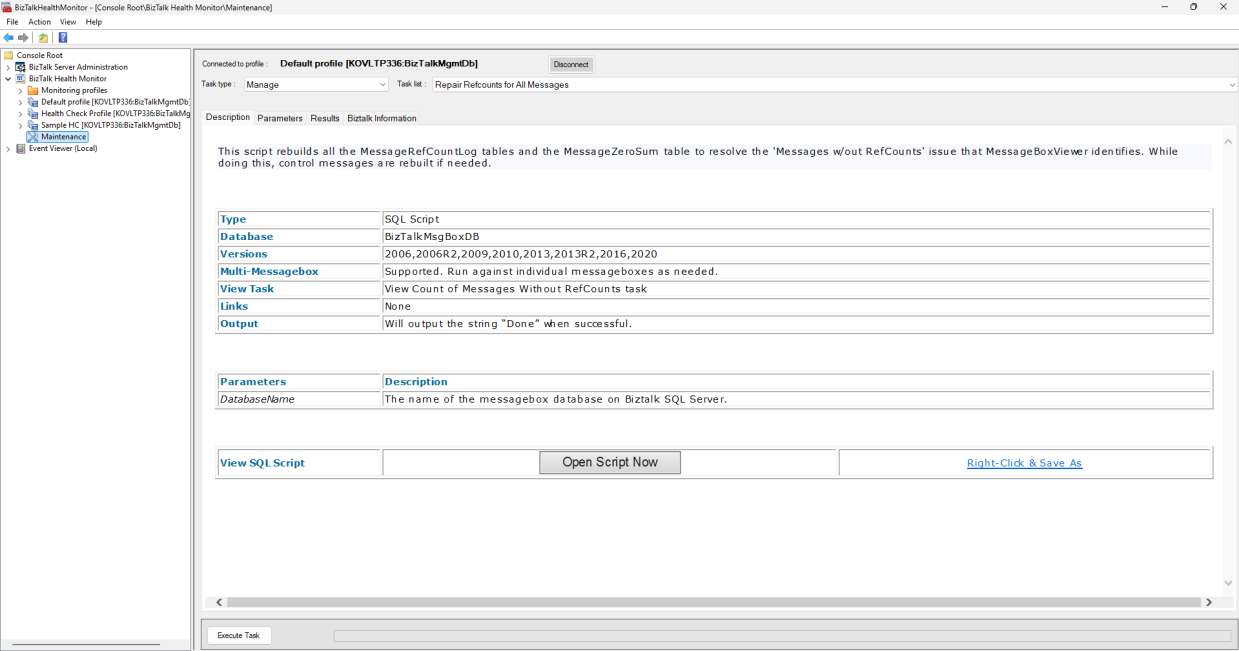
While BHM is effective at detecting issues and recommending corrective actions, executing those maintenance tasks remains a manual process. This leads to several limitations:
When BHM detects problems such as abnormal Message box database growth or orphaned tracking data, it can recommend the relevant cleanup or repair tasks, but it cannot automatically trigger them when those conditions are detected.
Once a BHM health check report is generated, administrators must review the report, identify the suggested maintenance tasks, validate the required parameters, and execute the actions manually.
Many maintenance tasks, such as purging tracking data or repairing orphaned records, are safe and beneficial when executed on a weekly or monthly basis as part of routine maintenance. However, BHM does not offer a mechanism to schedule the execution of these maintenance tasks.
This manual approach is time-consuming and difficult to manage, especially in large or dynamic environments where health checks run frequently.
With the introduction of BHM Maintenance Tasks integration in Automated Tasks, BizTalk360 addresses these challenges by bridging the gap between health check recommendations and execution.
In this blog, we will explore how BizTalk360 simplifies BHM maintenance by automating recommended actions and walk through the configuration steps.
BizTalk360 Automated Tasks is designed to reduce manual effort by allowing users to automate routine and corrective actions across BizTalk environments. It allows you to define tasks, configure schedules, and execute actions automatically or on demand, while also providing execution history and notifications for better visibility.
To simplify task creation, BizTalk360 offers predefined templates. These templates act as ready-to-use building blocks, enabling administrators to quickly configure commonly used automation scenarios without starting from scratch
Starting with BizTalk360 v11.6, we are happy to introduce a new predefined template:
BHM Maintenance Integration. This template brings BHM maintenance actions directly into Automated Tasks. It includes a comprehensive set of predefined SQL-based maintenance tasks that align with the recommendations generated by BizTalk Health Monitor.
These tasks are grouped into four logical categories:
Each category contains relevant SQL scripts designed to perform specific BizTalk database maintenance and optimization operations, such as repairing inconsistencies, improving performance settings, cleaning up orphaned data, and purging obsolete records.
Let’s see how to create a BHM Maintenance task in BizTalk360:
The parameter values are automatically populated based on the connected BizTalk environment. If needed, users can modify these values to suit their environment or operational requirements.
Next, configure the schedule, retry behaviour, and notification settings.
How to create a BHM Maintenance Task using BizTalk360 Automated Tasks.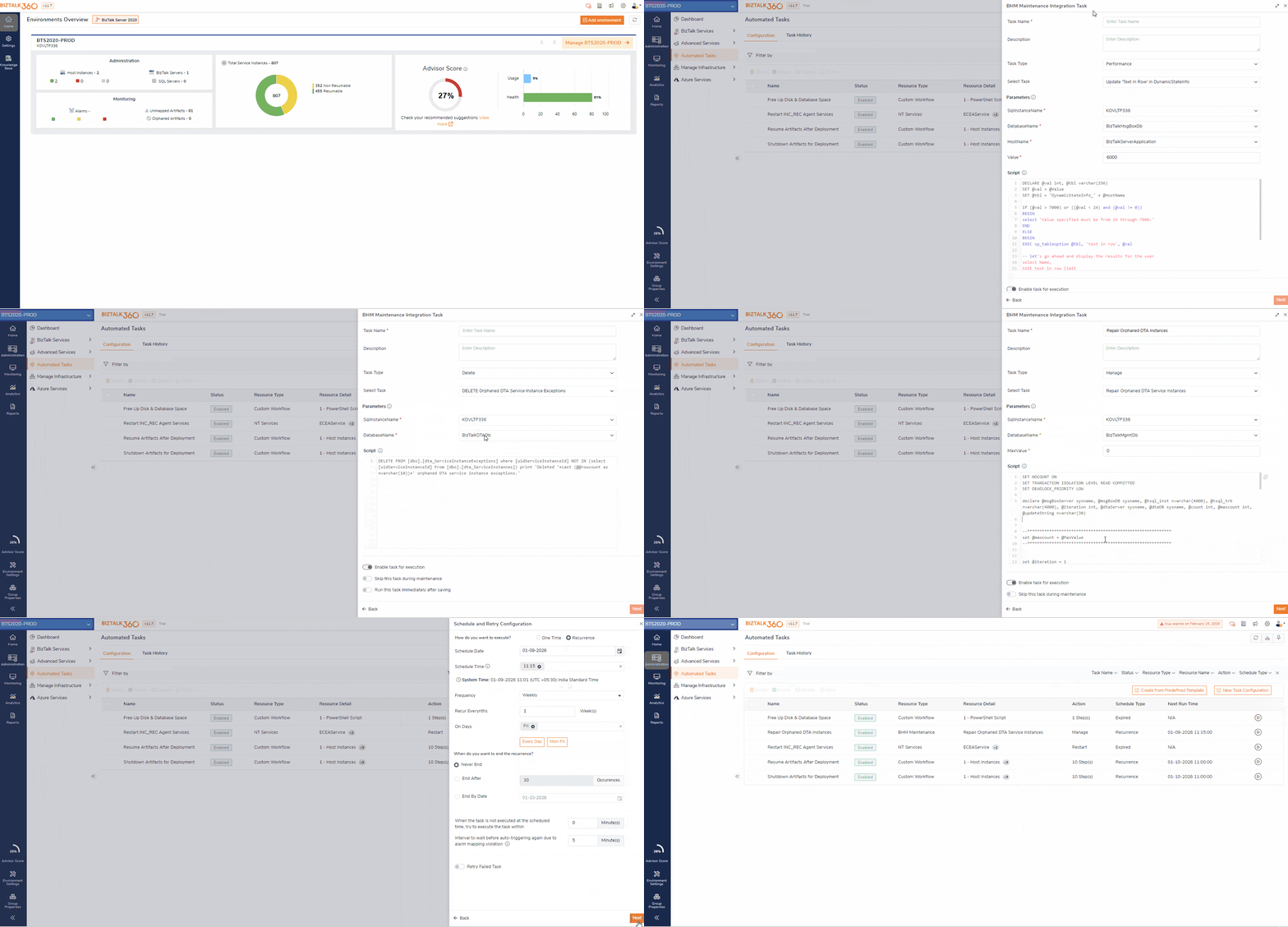
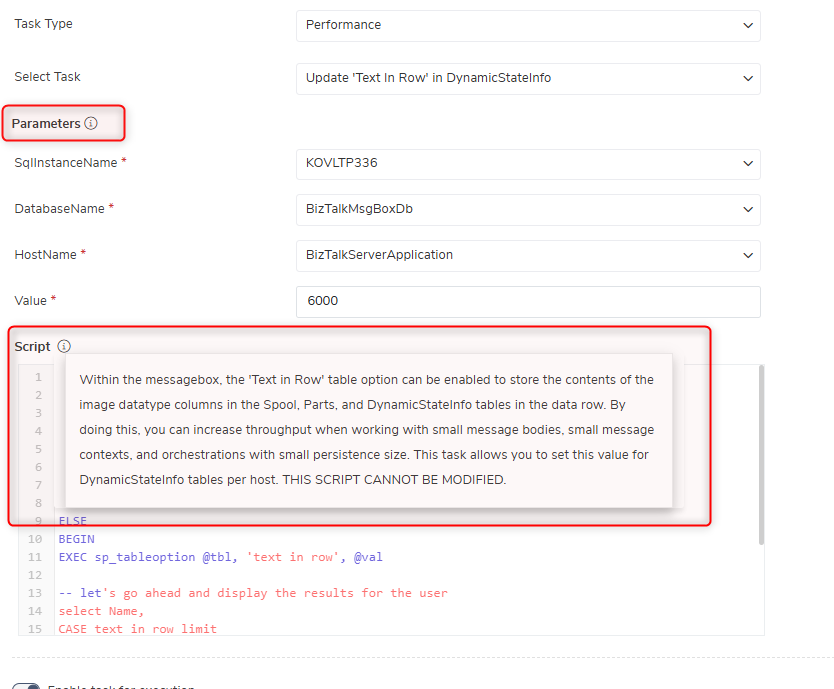
Note: Hovering over the info icons near the Script and Parameters sections explains what the script does and displays detailed information about each parameter. This ensures users understand the impact of the task before execution.
BizTalk360 provides two flexible execution models for BHM Maintenance Tasks, allowing users to choose what best suits their operational needs.
The first option is scheduled execution, where maintenance tasks are executed at predefined intervals. While creating a BHM Maintenance Task in Automated Tasks, users can configure a schedule to run the task periodically, such as weekly or monthly.
Once scheduled, BizTalk360 automatically executes the task at the configured time and sends notifications with the execution status and SQL output. This ensures consistent maintenance without manual effort.
Scheduled execution is ideal for maintenance tasks that are safe to run periodically and do not depend on real-time conditions.
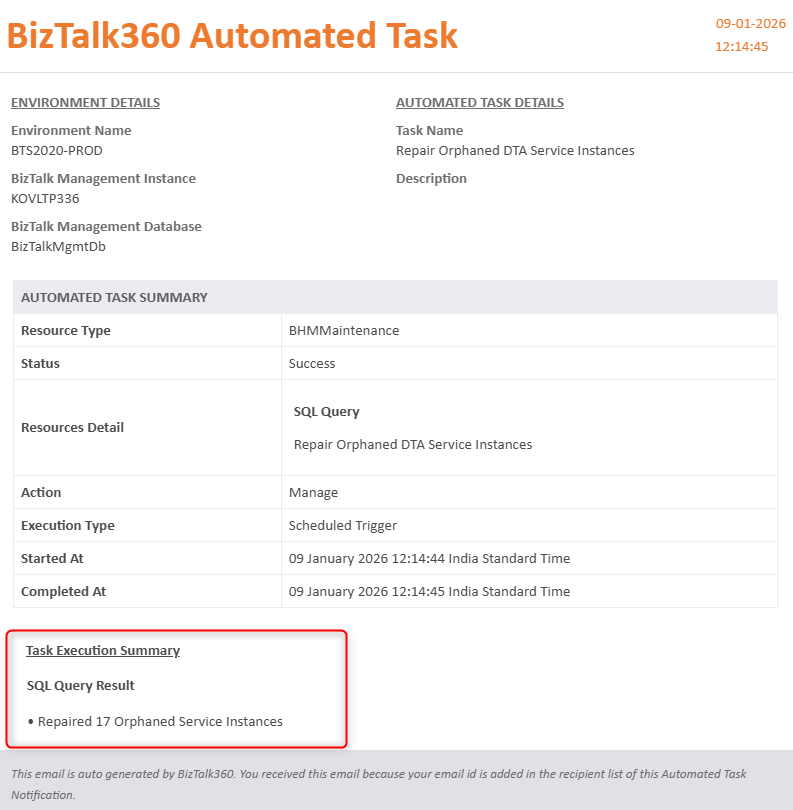
Example: Repair Orphaned DTA Service Instances
In many BizTalk environments, orphaned DTA service instances can accumulate over time due to unexpected failures or interruptions. These records are not cleaned up by the DTA Archive Purge job and can slowly increase the size of the tracking database.
Instead of waiting for the issue to be detected repeatedly in Health Check reports, administrators can schedule the Repair Orphaned DTA Service Instances task to run weekly or monthly using BizTalk360 Automated Tasks. This ensures orphaned records are consistently prepared for cleanup without manual intervention, keeping the tracking database healthy as part of regular maintenance.
Once the task is executed, the notification includes the SQL output returned by the task, giving clear visibility into what was executed and the outcome.
The second and more dynamic option is auto-triggered execution, which is driven by BizTalk Health Monitor reports. During each run of health check profiles, BHM analyses the environment and recommends maintenance tasks based on detected issues.
BizTalk360 extends this capability by converting those recommendations into automated actions. When a recommended maintenance task is enabled for auto-trigger, BizTalk360 automatically executes the corresponding Automated Task as soon as it appears in the latest Health Check report.
To enable auto-trigger execution, ensure the following configuration is in place:
For environments where all maintenance tasks are considered safe to execute automatically, users can enable Toggle to consider all available BHM maintenance tasks. This avoids the need to manually select individual tasks.
The following GIF demonstrates the steps to enable automated execution for recommended BHM maintenance tasks.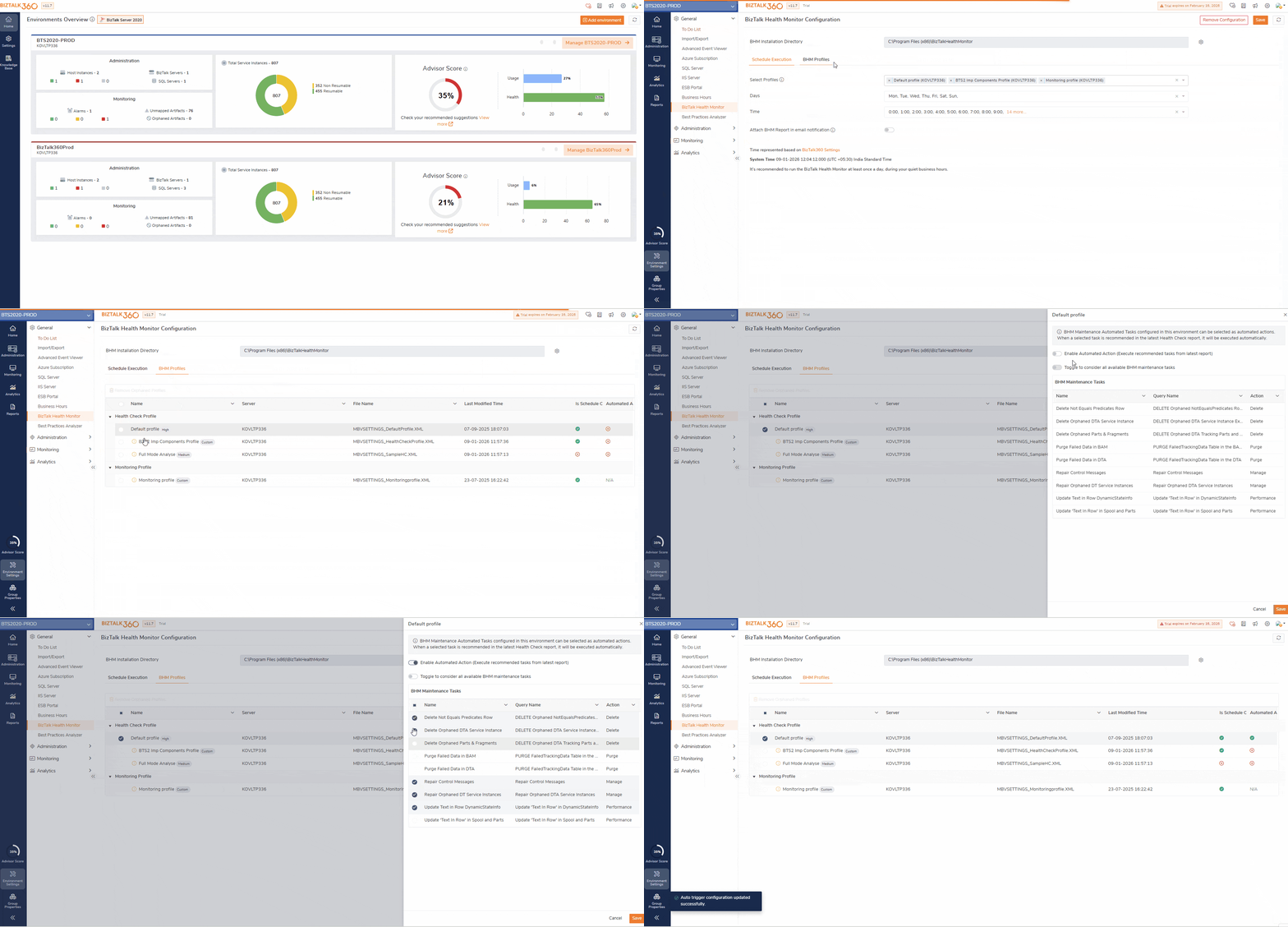
In high-throughput BizTalk environments, message processing failures can gradually lead to an accumulation of failed tracking records in the DTA or BAM databases. Over time, these records can impact tracking performance, slow down reporting, and increase database size without adding operational value.
During a Health Check run, BHM evaluates the state of tracking databases and identifies abnormal growth in failed tracking data. When such a condition is detected, BHM recommends purging outdated or excessive failed tracking records to restore optimal database health.
With BHM Maintenance Tasks integrated into BizTalk360 Automated Tasks, this recommendation no longer requires manual follow-up. If the corresponding maintenance task is enabled for automated action, BizTalk360 automatically executes the purge operation as soon as it appears in the latest Health Check report. This ensures tracking databases remain lean and responsive, while administrators stay informed through execution notifications and detailed results.
BizTalk360 currently supports a predefined set of 20 BHM maintenance tasks. Each of these tasks has a unique identifier and name, and the same identifiers are used by BHM when it recommends maintenance actions in a Health Check report.
When a Health Check runs, BHM generates a list of proposed maintenance tasks based on the issues it detects. BizTalk360 compares these proposed tasks with the configured BHM Maintenance Automated Tasks. If a matching task is found and it is enabled for auto-trigger, BizTalk360 automatically executes the corresponding Automated Task.
| Proposed Task name in BHM Report | Applicable Automated Task in BizTalk360 |
| Script to cleanup DTA orphaned Msgs | Manage Task -> Repair Orphaned DTA Service Instances |
| Script to purge MarkLog Table | Purge Task -> Purge MarkLog Table in Specific DB |
| Delete Orphaned rows in ‘NotEqualsPredicates’ table | Delete Task -> DELETE Orphaned NotEqualsPredicates Rows |
After a Health Check report is generated, administrators can view proposed and executed maintenance tasks by navigating to:
Administration > BizTalk Health Monitor > Select Profile > Maintenance Tasks tab.
This view clearly shows:
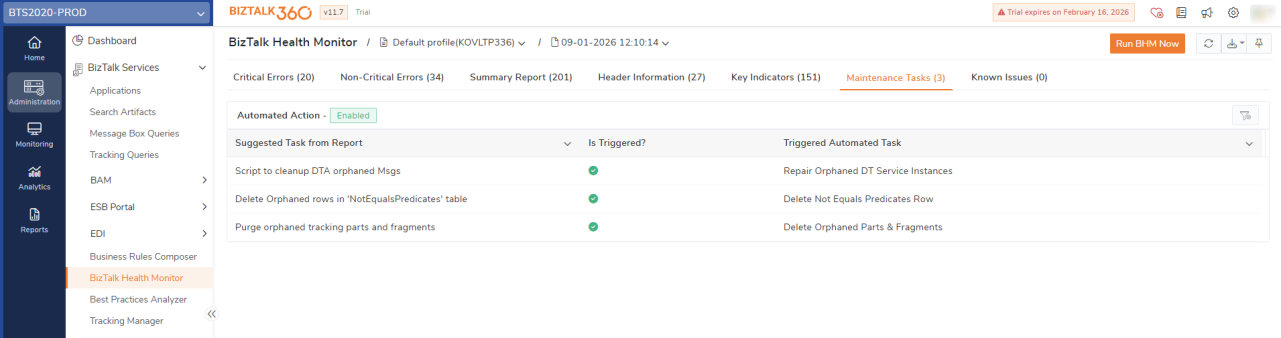
Users can also review historical recommendations and executions by selecting different report timestamps from the dropdown, providing complete visibility into past maintenance actions.
Maintaining a healthy BizTalk environment requires more than just identifying issues. The real challenge lies in acting on those insights at the right time, in the right way, and without unnecessary manual effort. By integrating BHM Maintenance Tasks with BizTalk360 Automated Tasks, this gap is effectively closed.
We hope these enhancements to BHM maintenance automation contribute significantly to your overall operational efficiency and business value.
To know more about the BizTalk360 features, try out the free trial or book a demo.
