


Mekala
Author
Published on : Sep 26, 2026
Category : BizTalk360 Monitoring
Healthcare Integrations often depend on HL7 messages exchanged over the Minimal Lower Layer Protocol (MLLP). In a BizTalk Server environment, the MLLP Receive Location acts as an important entry point for these messages. When the underlying MLLP listener becomes unavailable, inbound messages can no longer reach BizTalk Server, potentially disrupting critical integration workflows.
One of the challenges in monitoring MLLP integrations is that the Receive Location status alone may not provide sufficient visibility into the availability of the underlying TCP endpoint.
For example, a Receive Location can appear as Enabled in the BizTalk Administration console, while the corresponding MLLP TCP port may not actually be listening because the associated BizTalk Host Instance is stopped or the listener is otherwise unavailable.
This raises an important operational question:
How can we proactively verify that the MLLP endpoint is reachable and alert the operations team when it becomes unavailable?
One approach is to combine PowerShell-based TCP connectivity testing with BizTalk360 Automated Tasks.
In this blog, we will see how to use BizTalk360’s Automated Task to periodically monitor MLLP adapter port availability and proactively detect connectivity issues.
An unavailable MLLP endpoint can result in:
Rather than waiting for messages failures or customer reports, it’s better to verify the endpoint availability at regular intervals and receive alerts immediately when connectivity is lost.
“The MLLP Receive Location may be enabled in the BizTalk Administration Console, but the corresponding TCP endpoint is available only when the required BizTalk Host Instance and MLLP listener are operational.”
This may be the situation often BizTalk admins confused with.
As integration engineers, you have all experienced this moment-the one where the configuration says Enabled, but reality says Unavailable.
You may work with an MLLP Receive Location named “Tutorial_MLLP_Receive”.
Its configuration looked perfectly normal:
Receive Location: Tutorial_MLLP_Receive
URI: localhost:11000
Status: Enabled
At first glance, nothing suggested a problem.
So, you may decide to verify whether the endpoint was actually accepting TCP connections.
Test-NetConnection – ComputerName localhost -Port 11000
The result was disappointing.
TCP connect to (:1 : 11000) failed
TCP connect to (127.0.0.1:11000) failed
The receive location was enabled. The TCP port wasn’t reachable.
That contradiction led to an important realization.
An enabled Receive Location doesn’t always mean the MLLP listener is actually running.
Your next place to investigate was the BizTalk Host Instance.
Sure enough, the Host Instance responsible for the MLLP Receive Location wasn’t running. The configuration existed, but the runtime component responsible for opening the TCP port wasn’t alive.
After starting the Host Instance, you have checked the listener again.
netstat -ano | findstr :11000
This time you may have noticed:
TCP 127.0.0.1:11000 LISTENING
Now the endpoint was genuinely available.
Running the same PowerShell test again produced the result:
Test-NetConnection -ComputerName 127.0.0.1 -Port 11000
TcpTestSucceeded : True
Problem solved, but it also raised another question.
I didn’t want to discover a stopped Host Instance only after customers reported missing HL7 messages.
I wanted BizTalk360 to tell me first.
BizTalk360 already provides PowerShell Automated Tasks, making it the perfect place to automate this health check.
Instead of manually running Test-NetConnection, you can create a reusable PowerShell script that periodically validates whether the MLLP endpoint is accepting TCP connections.
The script monitors one of more MLLP endpoints and reports whether each one is available.
$MllpEndpoints = @(
    @{
        Name = "Tutorial_MLLP_Receive"
        Host = "127.0.0.1"
        Port = 11000
    }
)

$UnavailablePorts = @()

foreach ($Endpoint in $MllpEndpoints) {

    $Connection = Test-NetConnection `
        -ComputerName $Endpoint.Host `
        -Port $Endpoint.Port `
        -WarningAction SilentlyContinue

    if ($Connection.TcpTestSucceeded) {

        Write-Output "AVAILABLE: $($Endpoint.Name) - $($Endpoint.Host):$($Endpoint.Port)"

    }
    else {

        $Message = "UNAVAILABLE: $($Endpoint.Name) - $($Endpoint.Host):$($Endpoint.Port)"

        Write-Error $Message
        $UnavailablePorts += $Message

    }
}

if ($UnavailablePorts.Count -gt 0) {
    throw "$($UnavailablePorts.Count) MLLP endpoint(s) are unavailable."
}
What the Script Is Actually Doing? The script is intentionally simple.
It performs the same verification an administrator would do manually-but automatically and consistently.
Then the expected result is:
AVAILABLE: Tutorial_MLLP_Receive – localhost:11000
Important Note: The Host value should correspond to the server where the MLLP endpoint is hosted, relative to where the PowerShell script is executed.
If the script runs on the BizTalk Server: use 127.0.0.1 (localhost) when the MLLP listener is running on that same server.
If the script runs on the BizTalk360 Server: provide the BizTalk Server host name where the MLLP listener is running.
For example:
Host = “BizTalkServer01”
This distinction is important because 127.0.0.1 always refers to the machine executing the script, not automatically to the BizTalk Server.
What BizTalk360 Monitoring Covers?
This script validates one very specific and very important – layer of your HL7 integration.
BizTalk360 confirms that:
Once the script has been validated, it can be configured as a PowerShell Automated Task in BizTalk360.
The general configuration involves:
Environment Dashboard → Administration → Automated Tasks → PowerShell Script
The task can then be configured with:
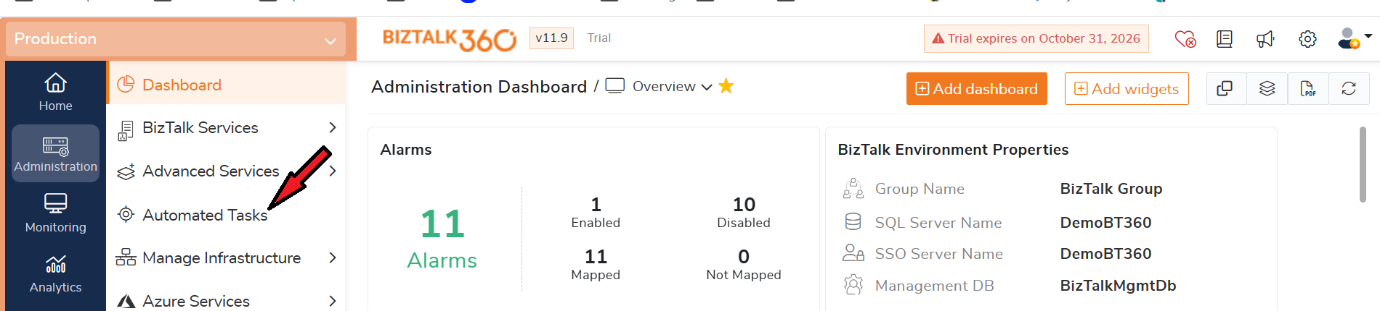
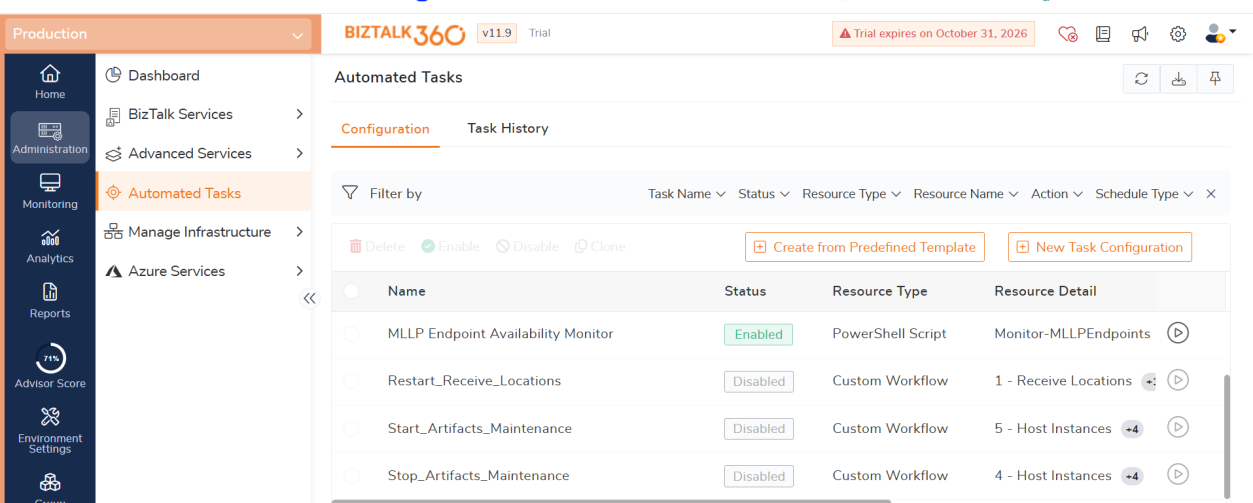
For example, the task could execute every 5 or 15 minutes depending on the required monitoring frequency.
When the endpoint is reachable, the task completes successfully.
When one or more monitored endpoints become unreachable, the script returns a failure condition, allowing the automated task to be treated as a monitoring exception.
BizTalk360 supports both inline PowerShell scripts and scripts stored as .ps1 files. It also provides script validation before the task is scheduled for execution. Script output generated through Write-Output and Write-Error can be viewed in task execution history and notifications.
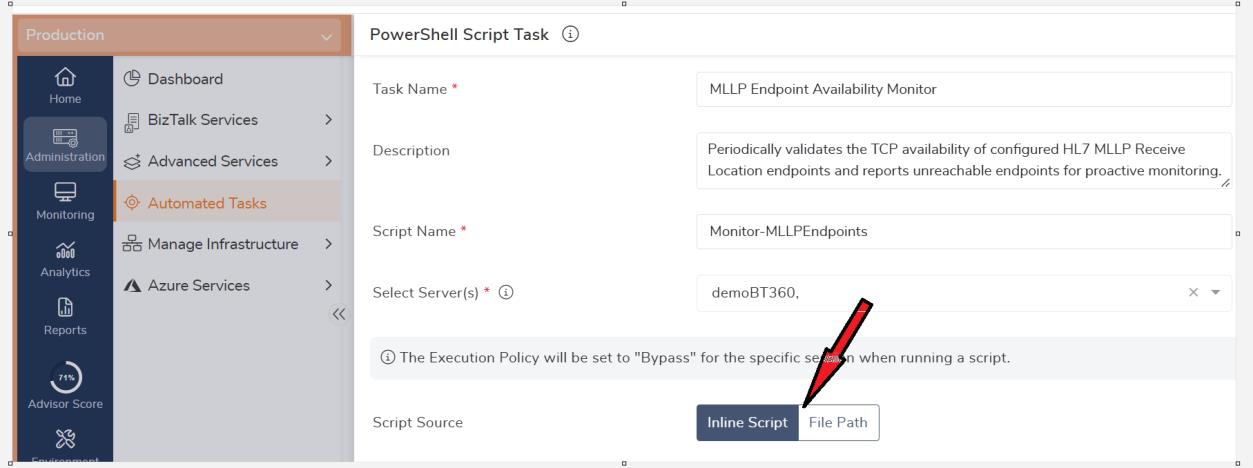
For this scenario, the task is configured with following details:
MLLP Endpoint Availability Monitor
Periodically validates the TCP availability of configured HL7 MLLP Receive Location endpoints and reports unreachable endpoints for Proactive monitoring.
Monitor-MLLPEndpoints
The task name describes What is being monitored, while the script name identifies the PowerShell implementation performing the check.
The script is then associated with the BizTalk Server on which the MLLP connectivity check needs to be performed.
The Select Server(s) option is particularly important in this scenario. The TCP test is executed from the selected server, so the server should have network connectivity to the MLLP endpoint being monitored.
BizTalk360 allows the PowerShell task to execute scripts on local or remote servers, with up to five servers configurable for a task. The execution account must have the required access to the selected server.
For this example, the script is configured as an Inline Script. For larger or reusable scripts, the File Path option can be used to execute an existing .ps1 file from a server.
The Validate option can then be used to verify the script before proceeding with the remaining task configuration.
The next step is to determine how frequently the MLLP endpoint should be validated.
BizTalk360 Automated Tasks support both One Time and Recurrence schedules. A one-time schedule is useful during initial validation, while a recurring schedule is more appropriate when the objective is continuous endpoint monitoring.
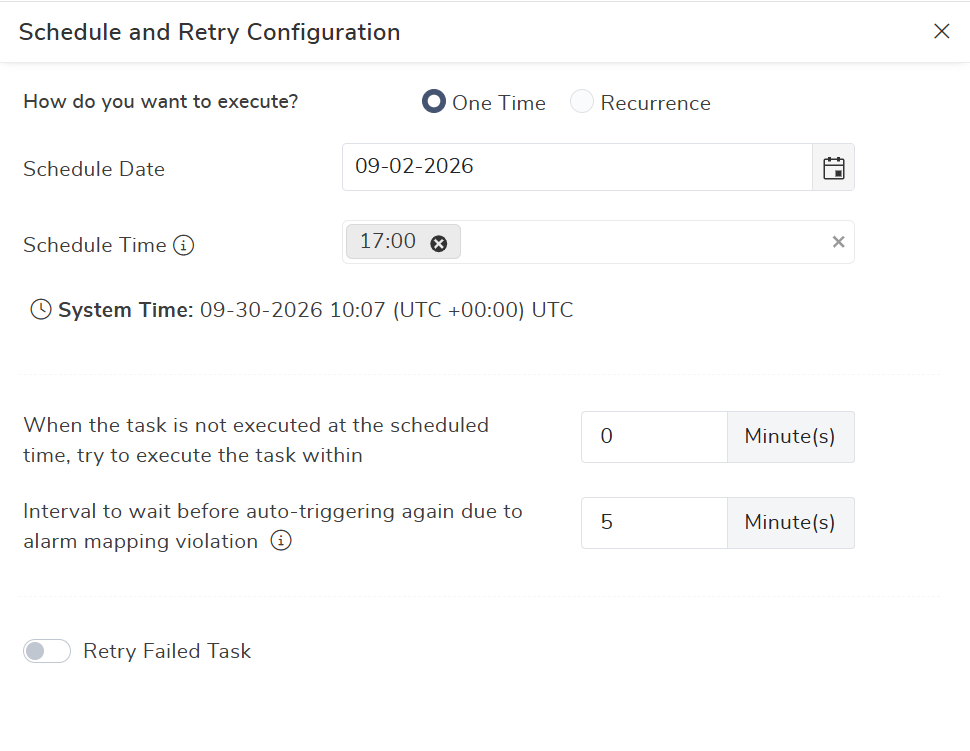
For example, a production environment could use a recurring schedule such as:
Every 15 minutes
This means that BizTalk360 periodically executes the PowerShell script and verifies whether the configured MLLP endpoint is reachable.
The appropriate frequency depends on the business criticality of the integration.
A highly critical HL7 interface may require more frequent checks, while a less critical interface may be adequately monitored at longer intervals.
The important point is that the schedule should align with the organization’s expected detection time for an MLLP outage.An MLLP endpoint being unavailable for a single check does not always mean that there is a prolonged outage.
For example, the BizTalk Host Instance could be restarting: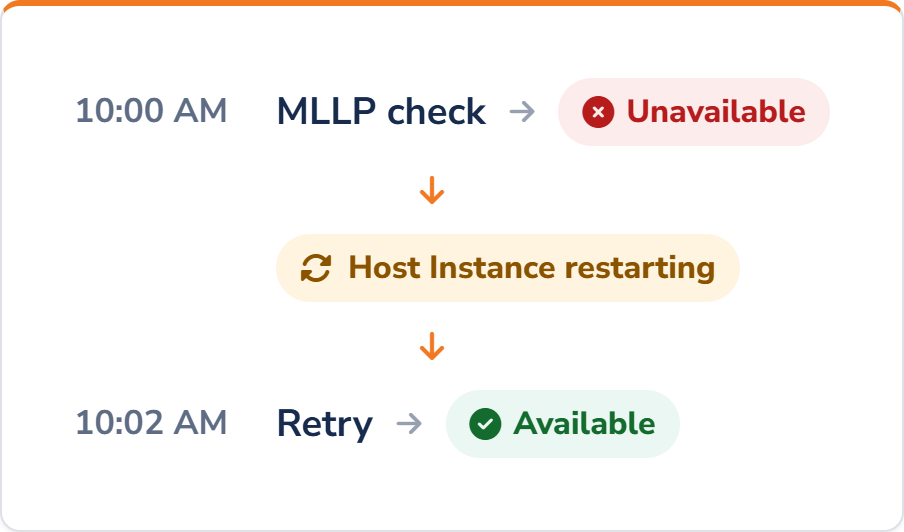
This is where the Retry Failed Task option becomes useful.
BizTalk360 allows a failed automated task to be executed again by configuring the number of retries and the retry interval.
For this monitoring scenario, a reasonable example could be:
These values are only examples. The appropriate retry behaviour should be based on the operational characteristics of the BizTalk environment.
The purpose of the retry is not to hide an outage. It provides a short opportunity for a transient condition to recover before the failure is treated as persistent.
If the endpoint remains unavailable after the configured retries, the task should continue to report the failure.
A monitoring solution is only useful if the notifications it generates are actionable.
Imagine an MLLP endpoint being checked every 15 minutes and generating an email every time the check succeeds:
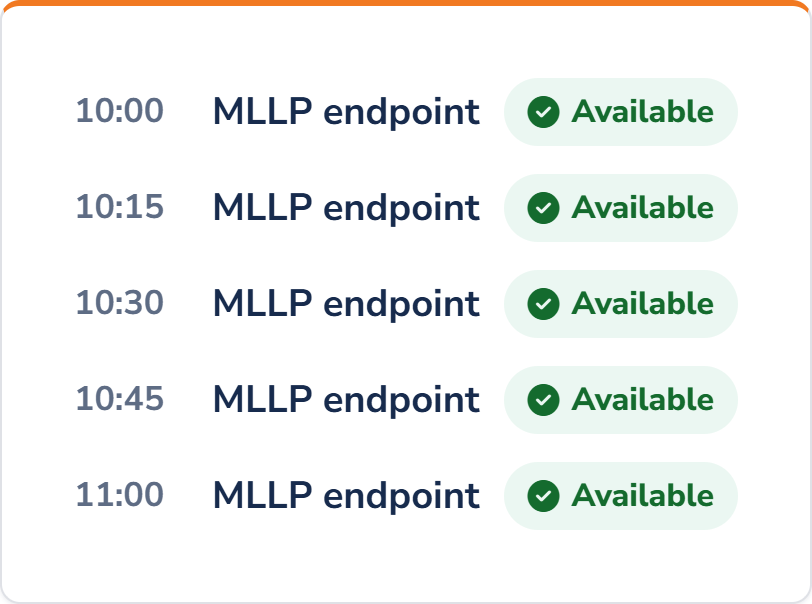
For a continuously monitored production endpoint, these messages provide little operational value.
Instead, the Notify only on Failure option can be enabled.
With this configuration, the normal state remains silent:
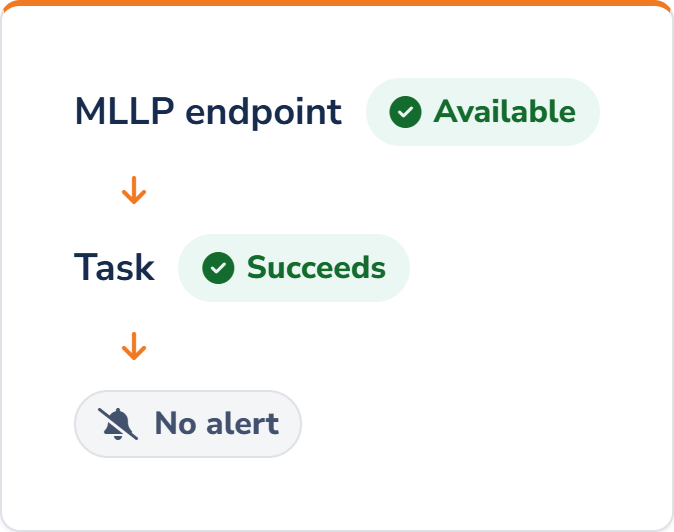
When the endpoint becomes unavailable:
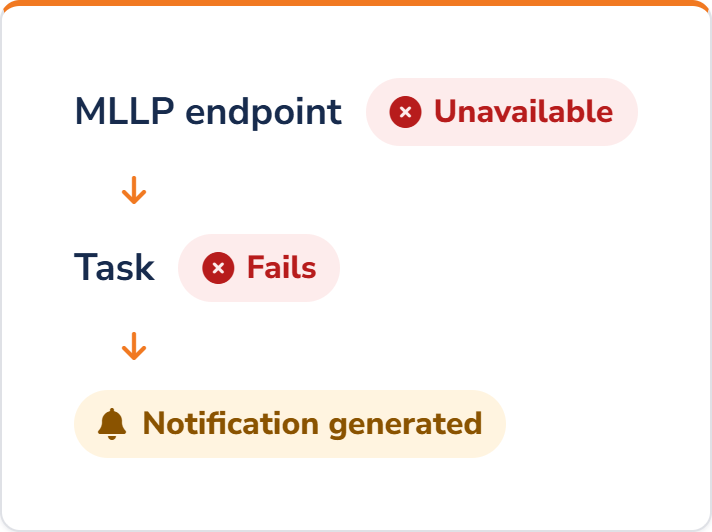
BizTalk360 supports the Notify only on Failure option specifically to send notifications when an automated task execution fails.
This makes the notification model much more suitable for availability monitoring.
BizTalk360 provides multiple notification options for automated tasks, including email and collaboration channels.
For this example, email notifications can be configured for the integration or operations team.
The recipients should be selected based on who is responsible for responding to an MLLP connectivity failure.
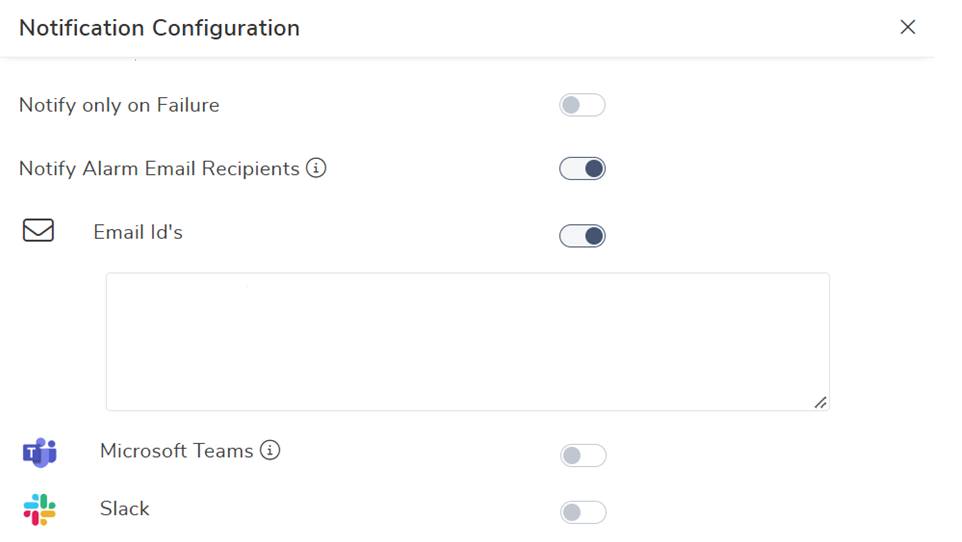
For example:
Success Alert from BizTalk360:
The above screenshot shows you can configure an email recipient for the task.
In a real production environment, the recipient should be an appropriate operational distribution list rather than an individual’s mailbox.
Email notifications also require the corresponding BizTalk360 SMTP configuration to be available.
Depending on the organization’s operational model, collaboration channels such as Microsoft Teams or Slack can also be used.
The important consideration is not simply where the notification is sent, but whether the notification reaches the team that can actually investigate and recover the MLLP endpoint.
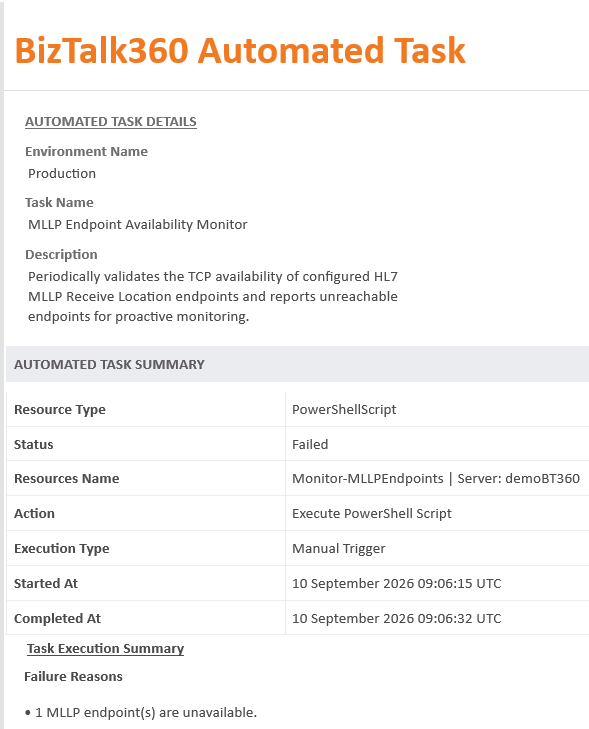
Failure Alert from BizTalk360:
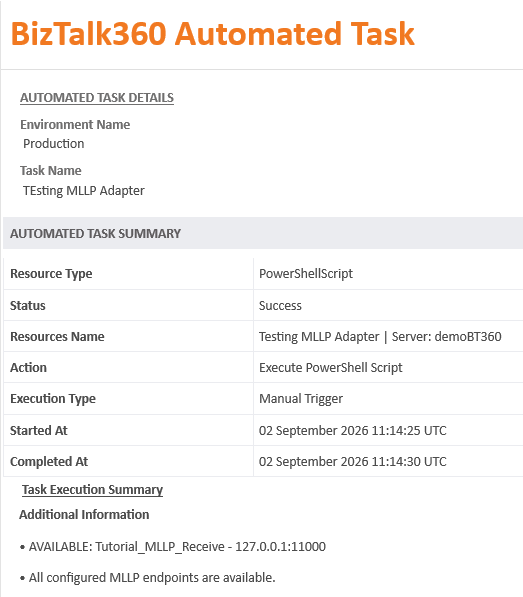
Success Alert from BizTalk360:
BizTalk360 Automated Tasks provide a flexible way to automate routine operational activities in a BizTalk Server environment. By combining scheduled execution, PowerShell scripts, retry options, and notifications, administrators can turn manual checks and operational actions into repeatable and manageable processes.
The MLLP endpoint availability scenario is one example of how Automated Tasks can be used to proactively identify potential issues before they become larger operational problems. The same approach can also be extended to other monitoring, validation, and administrative requirements across the BizTalk environment.
Rather than relying entirely on manual checks or waiting for an issue to be reported, Automated Tasks help bring automation into day-to-day BizTalk operations, reducing repetitive effort and providing a more consistent approach to operational monitoring and response.
To know more about the BizTalk360 features, try out the free trial or book a demo.