


Vaishnavi Thiruppathi
Author
Published on : Aug 12, 2025
Category : BizTalk360 Update
The BizTalk360 Advisor Scorecard provides a comprehensive insight of how efficiently users are leveraging BizTalk360 by comparing actual feature usage against what is available in the application under their purchased license. This insight enables users to identify the underutilized functionalities and helps them in improving operational efficiency and fully leverage the value of their investment in BizTalk360.
The score of the environment is calculated based on the health of their environment and usage of the available features.
The Health Score in BizTalk360 is calculated based on various operational checks. If any of the following issues are detected, your health score will decrease, and the corresponding items will appear as action items in the scorecard under health category.
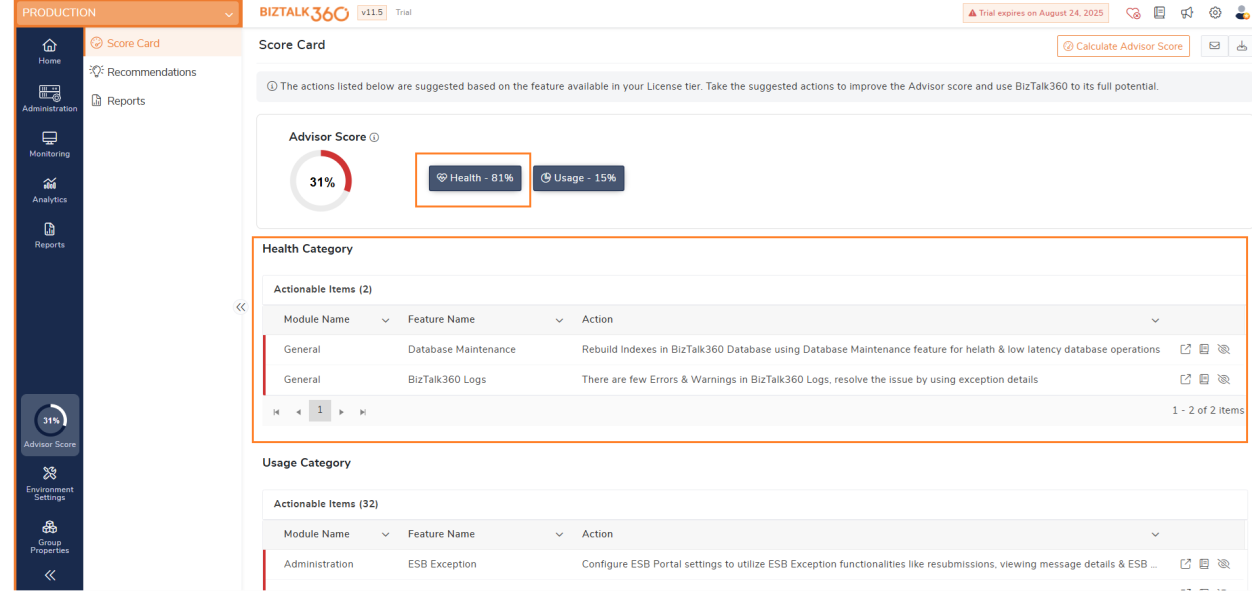
Addressing these issues promptly will improve your Health Score and helps to ensure your BizTalk360 environment remains stable and optimized.
The Usage Score is calculated based on the feature configurations and actions performed within the environment. Each feature includes a set of action items tailored to your licensing tier. If those actions are taken, it will be removed from the action items and your score will be increased.
The action items are listed for features only if the following criteria are met:
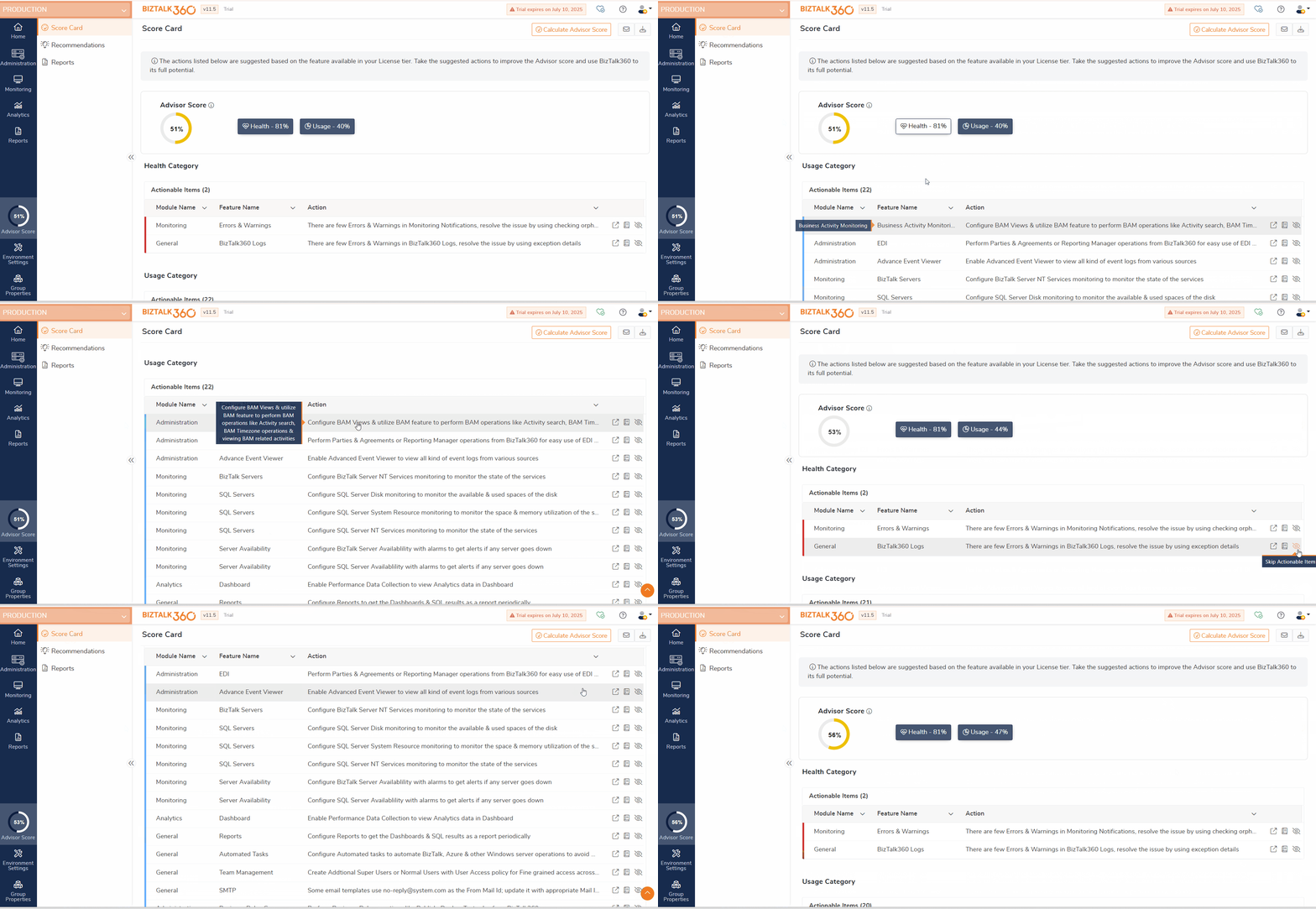
Let’s consider a scenario where your BizTalk360 License tier has access to EDI, and EDI is already configured in you BizTalk Server. In such case BizTalk360 Advisor continuously checks whether you’re making active use of EDI related features. If it detects that no operations are being performed through BizTalk360, it will flag this as an action item in your advisor score card. This action items servers as a proactive recommendation, suggesting that you’re not utilizing a feature that is available to you.
Each action item includes direct URLs to the specific feature where the configuration or action can be done and has the corresponding documentation that explains about the feature, why it’s useful and how to work with it effectively. Based on that understanding, you can choose to either start using the EDI parties and agreements within BizTalk360 to take full advantage of your licensed features. Once you take action like configuring EDI agreements or managing EDI parties in BizTalk360 the system detects it. The action item will be removed in the next scorecard cycle, and your Advisor Score will improve, promoting better platform utilization.
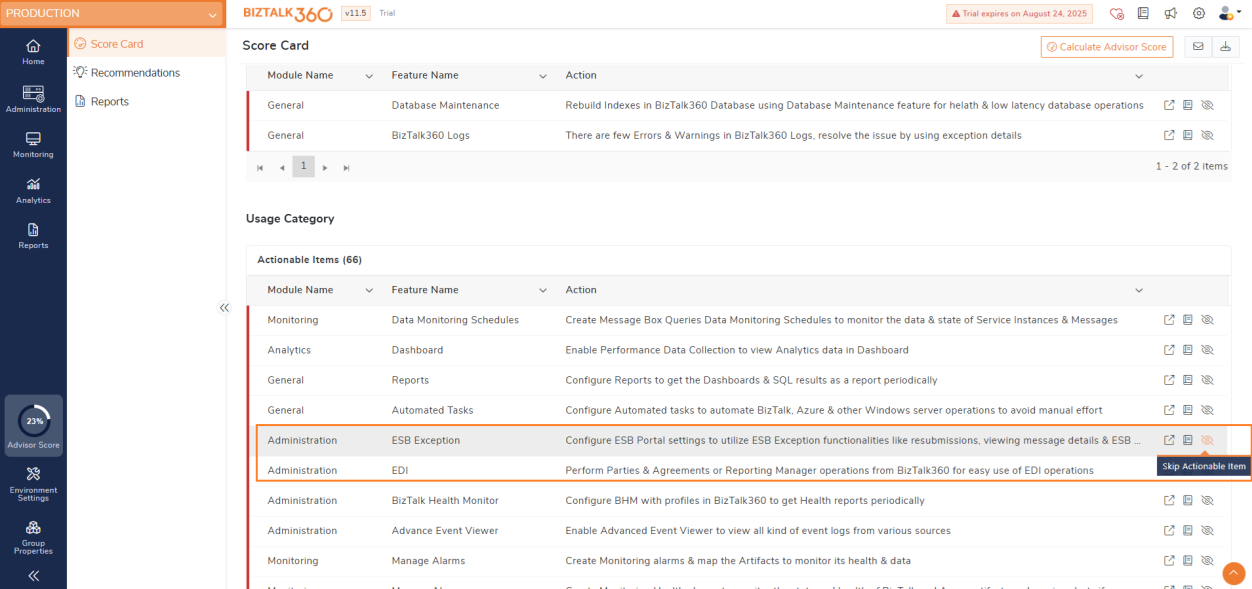
In case if you don’t want to use the feature, which is provided as an action item, you can skip the respective action items. For instance, if the ESB feature isn’t relevant to your business and you choose not to use it, you can skip the related action items in the scorecard. It will be removed from the action items and listed separately under skipped items. This also helps you to improve your Advisor Score.
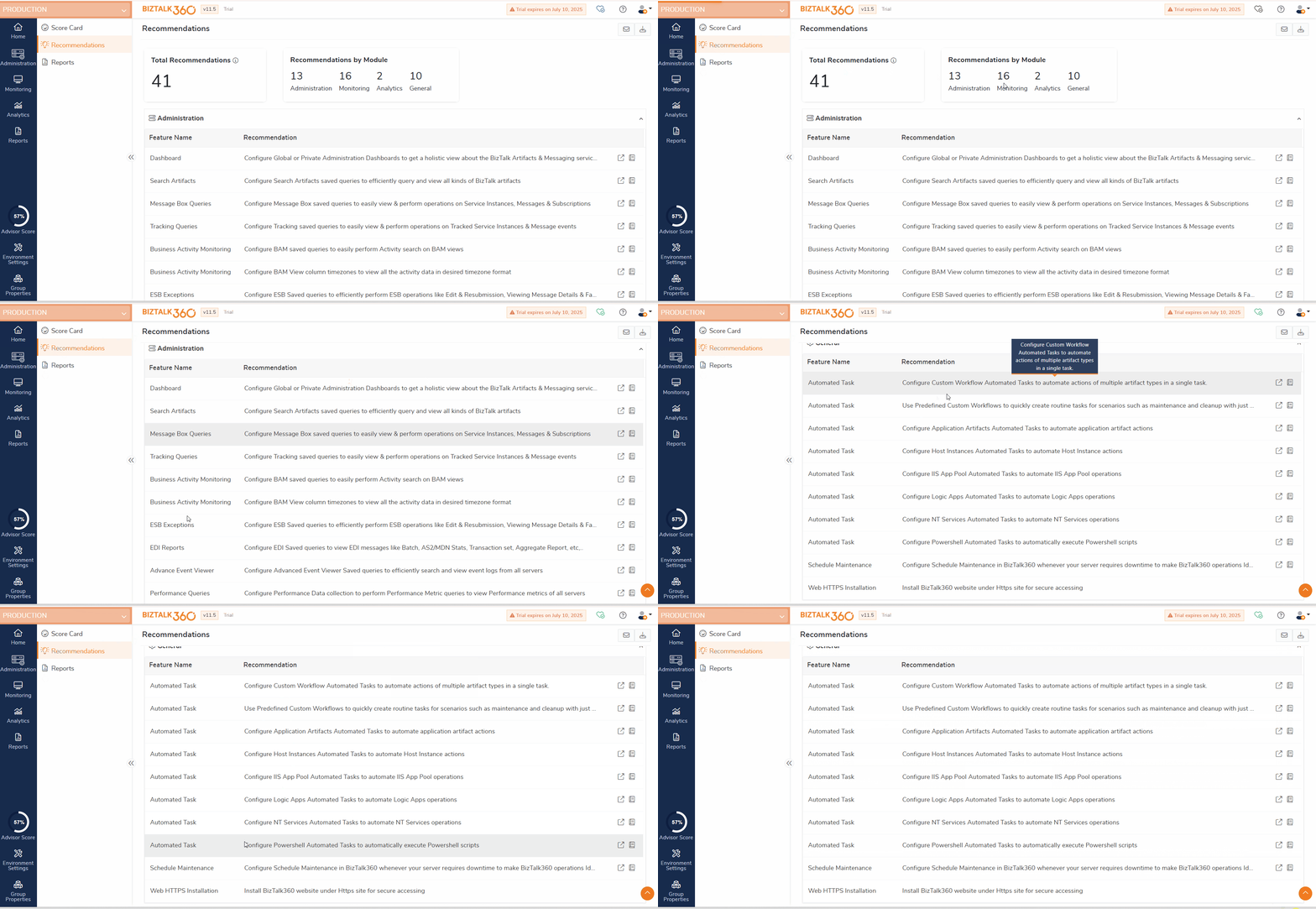
BizTalk360 Advisor intelligently analyses how users interact with the application and highlights features that remain unused or underutilized within their environment. It provides personalized and actionable recommendations aimed at helping users make use of all the features in the product. These insights are grouped under four main categories: Administration, Monitoring, Analytics, and General.
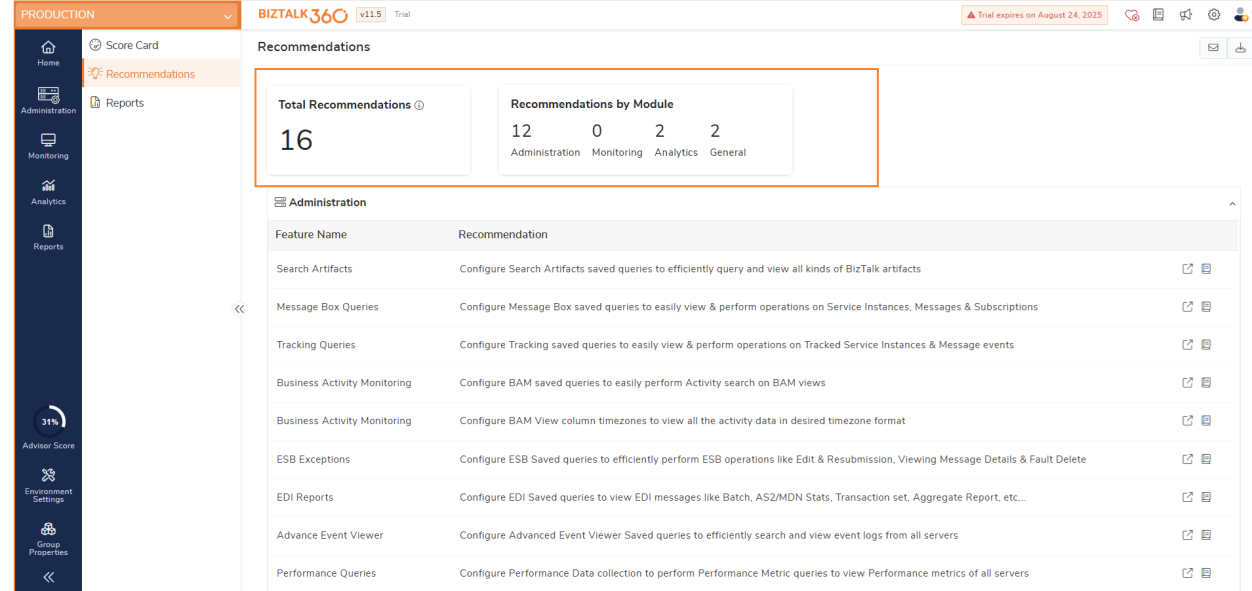
The recommendations are tailored based on the user’s current license tier and the features enabled in their environment. For instance, if a user’s license includes AEV capabilities but they’ve intentionally disabled it for a particular environment, the Advisor will not suggest any recommendations related to AEV for that environment. This ensures that the suggestions are both relevant and aligned with what the user is entitled to use.
If a user has configured automated tasks only for the Application type in their environment, the BizTalk360 Advisor will recommend setting up automated tasks for other available types as well. This encourages users to explore the full range of automation options available which helps them in utilizing all automated task types available within BizTalk360.
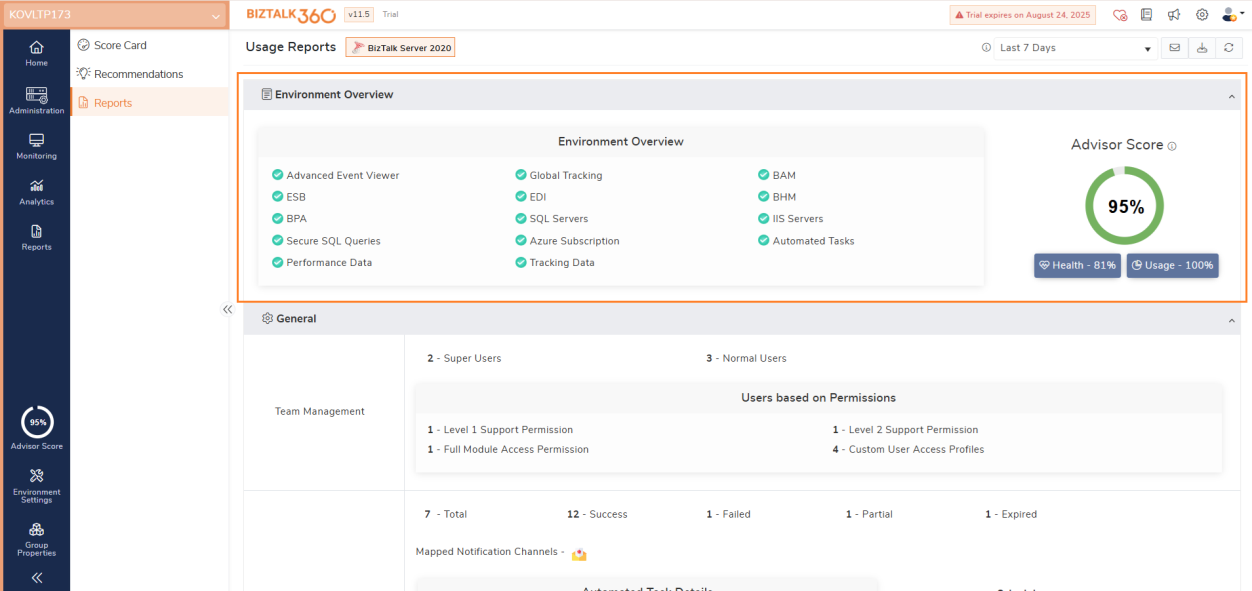
BizTalk360 Advisor report serves as a telemetry-based guide designed to help you optimize the usage of the BizTalk360 application across your environment. It provides an overall report by analysing the feature usage based on your current license tier and the functionalities enabled, offering a section-wise overview, covering General, Administration, Monitoring, and Analytics for a quick and clear understanding of how BizTalk360 is being utilized in your environment.
This section showcases all the key features and configurations available in BizTalk360 such as AEV, Tracking, BAM, ESB, EDI BHM, BPA, SQL and IIS Servers. Each feature is visually indicated: a green checkmark signifies that the feature is enabled and in use, while a red cross indicates it is either disabled or not utilized.
Let’s consider a scenario where an enterprise is onboarding a new administrator to manage BizTalk360. In this case, the Environment Overview section acts as a one screen summary, providing a clear view of which features are already configured, and which are not. This simplifies the process of understanding the BizTalk360 usage and helps the new admin quickly identify areas that may need attention or action.
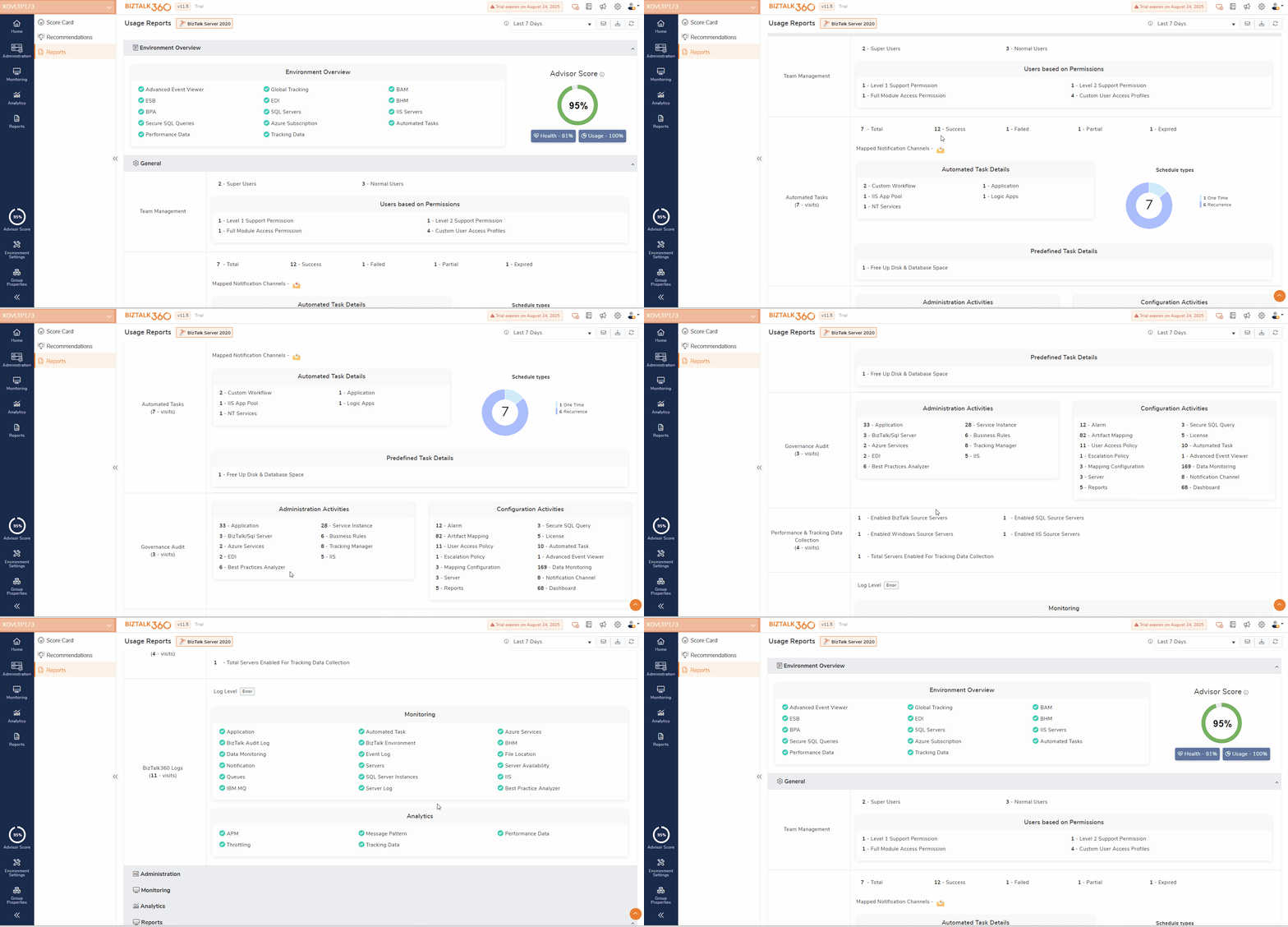
This section provides insights into overall configuration, including the total number of users added under team management, the count of Governance and Audit activities, details on the number and types of automated tasks configured, and the status of BizTalk360 Logs configuration.
In the event of any malfunction or unexpected behaviour within the BizTalk360 environment of an enterprise, one of the most critical steps in the troubleshooting process is to examine the activities carried out in the environment and determine the users responsible for those actions. To support this, BizTalk360 advisor provides a consolidated view in this section, which includes detailed audit logs and user activity history. It enables administrators to track what changes were made, when they were made, and by whom all in a single screen.
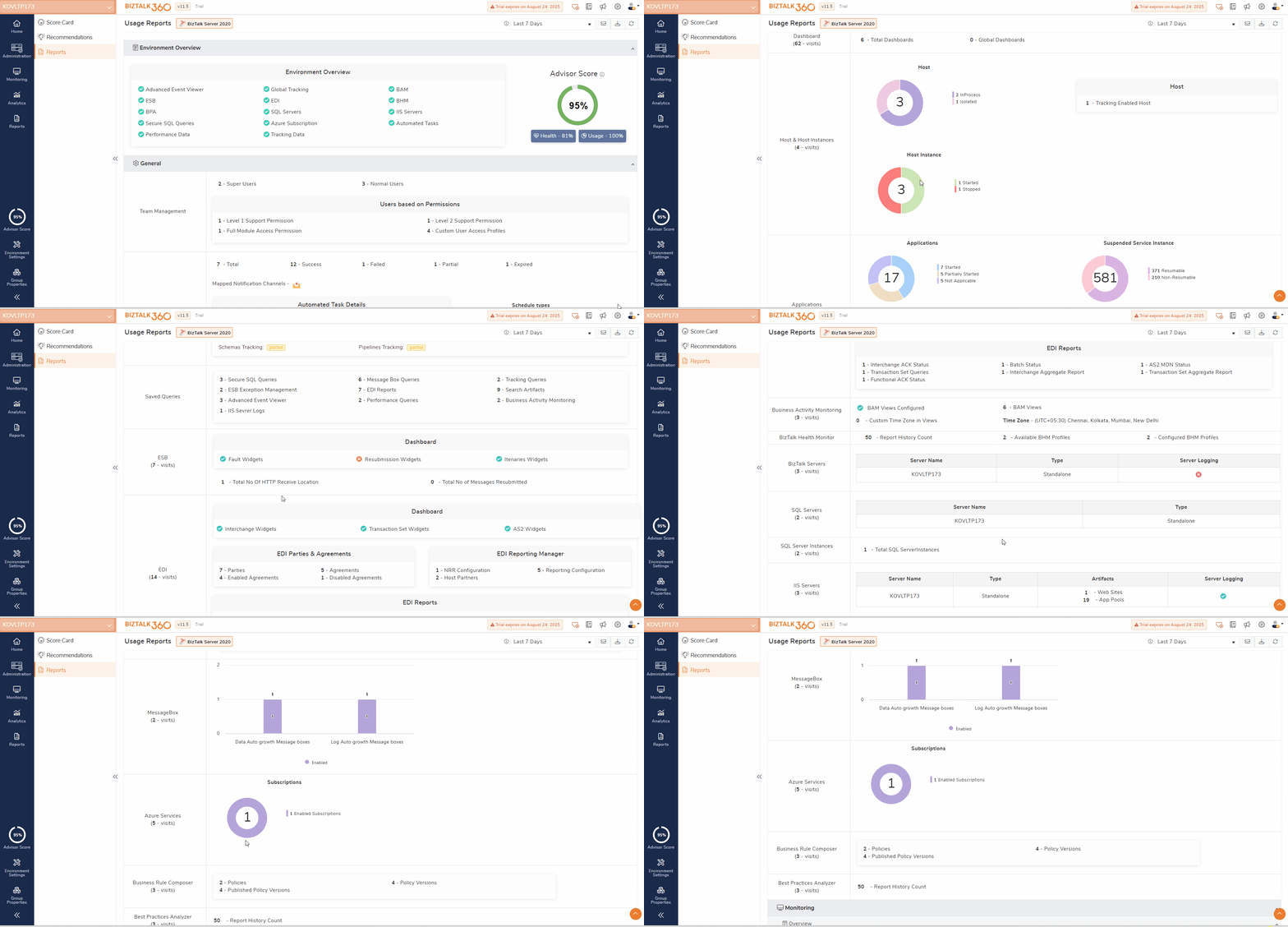
This section in BizTalk360 Advisor offers a comprehensive overview of the core infrastructure, including hosts, host instances, and deployed applications. It highlights the configuration and usage of key components like tracking, ESB, EDI, BAM, and business rules. Additionally, it provides visibility into server setups, adapters, message box settings, and Azure subscription details. This section helps administrators ensure that critical BizTalk components are properly configured and effectively utilized across the environment.
Let’s assume a scenario where a critical business message flow suddenly fails without any warning. Upon initial inspection, there are no functional issues within the application logic, leading the team to suspect an environmental problem as the root cause.
In such cases, the BizTalk360 Advisor Report becomes an invaluable tool for rapid troubleshooting. This report provides a consolidated view of the BizTalk environment, enabling administrators to quickly assess the health and configuration of various infrastructure components such as host instance status, tracking, adapter and port level configurations.
Overview section in BizTalk360 provides a consolidated view of all the monitored components across the environment. It includes the health status of applications, host instances, databases, servers (BizTalk, SQL, IIS), queues, and file locations. It also tracks Azure services, server availability, and thresholds for various categories. Additionally, alarms and notifications are displayed, highlighting critical and healthy statuses to help identify issues quickly.
Assume that an enterprise where critical messages are processed 24/7 via BizTalk Orchestrations. One day, the host instance running this process stops due to a memory overload on the server. This causes all dependent orchestrations and ports to stop functioning leading to message failure.
In such case, if this host instance is mapped for monitoring and goes stopped, the monitoring section in advisor report highlights that the host instance is in critical state. By looking at this user can take necessary action on it promptly which helps in preventing breaches by catching issues early in the message flow pipeline.

This section offers a clear overview of how well the analytics and reporting capabilities are utilized across dashboards, widgets, and scheduled reports in the BizTalk360 environment.
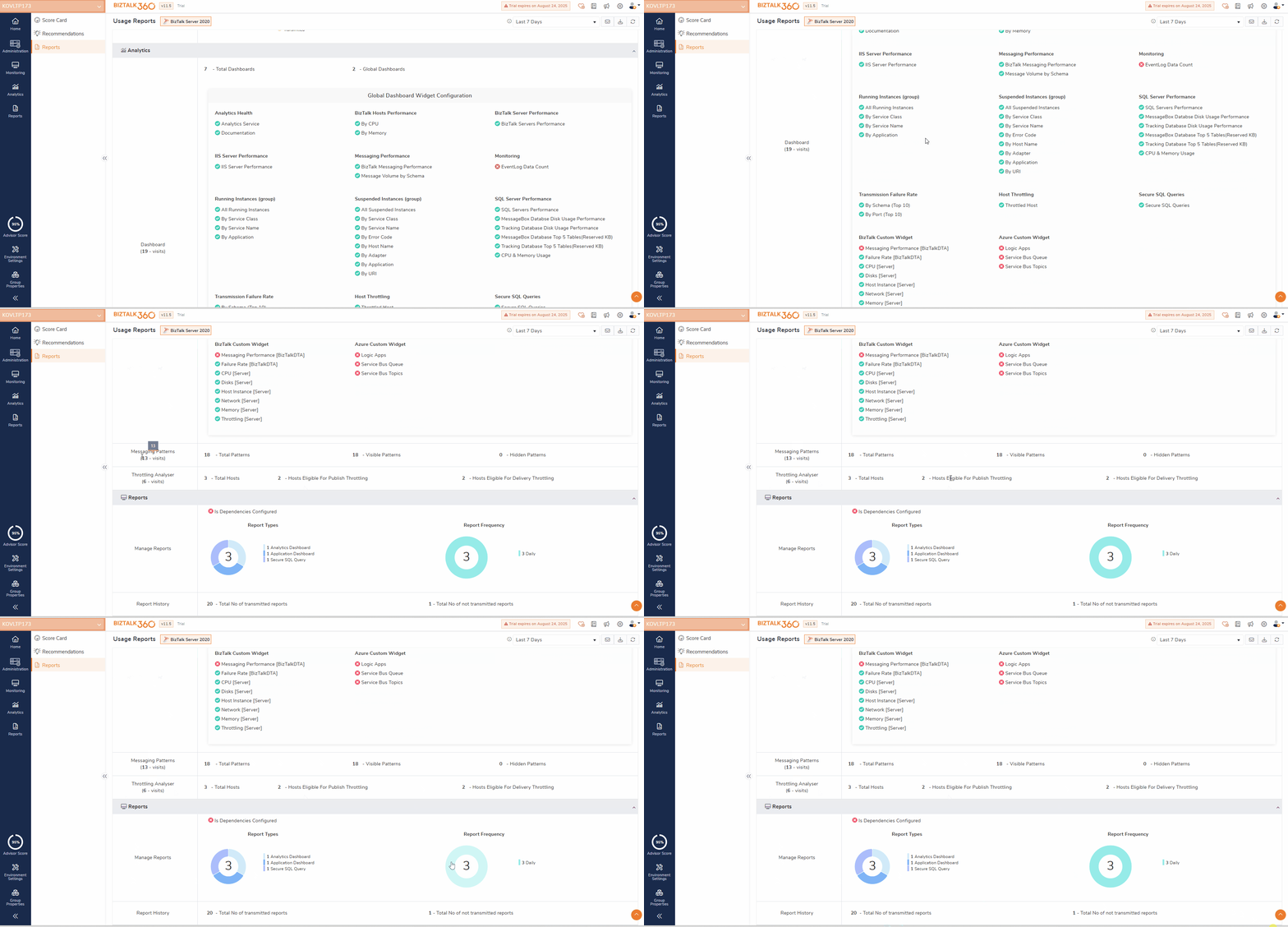
The Advisor reports display real-time data for each module, providing an up-to-date view of the environment’s current state. Additionally, historical data such as Governance and audit available in reports can be viewed based on the selected time range, allowing users to view data for a specific period.
BizTalk360 Advisor isn’t just a reporting tool; it’s your virtual consultant. It continuously evaluates your environment and guides you towards better usage and understanding of your environment.
By understanding your current utilization of BizTalk360, it identifies gaps and offers tailored recommendations. This ensures that your BizTalk360 setup is both efficient and effective. Start leveraging the Advisor today to unlock the full potential of your BizTalk360 platform.
To know more about the BizTalk360 features, try out the free trial or book a demo.