

Senthil Kumar
Author
Published on : Nov 26, 2026
Category : BizTalk360 Monitoring
BizTalk Server depends completely on SQL Server. Every message that enters BizTalk has persisted to the Message Box database before it is processed. Configuration lives in the Management database, tracking data in the Tracking database, and credentials in the SSO database. If SQL Server is unavailable, BizTalk stops processing. Host instances can’t pick up messages, orchestrations can’t persist state, and receive locations start failing.
That’s why most production BizTalk environments run their databases on a highly available SQL Server, either a SQL Server Failover Cluster Instance or Always-On Availability Groups. When something goes wrong on one node, these setups fail over to another one automatically.
High availability brings its own blind spot, though. Failovers often happen quietly. A patch reboot, a brief network glitch, or a resource issue can move the active node or primary replica, and everything still looks “up.” Where your workload runs still matters a lot:
Without visibility into these changes, admins may discover failover only after BizTalk performance drops. BizTalk360’s SQL Server availability monitoring helps bridge this gap by providing early alerts on failovers, preferred node, replica change and node availability issues.
BizTalk360 12.0 extends SQL Server availability monitoring, so it now covers failovers as well as outages. Besides telling you whether your SQL Servers are reachable, BizTalk360 now tracks where your BizTalk databases are running and alerts you when those changes.
SQL Server Availability resides in Monitoring → Server Availability → SQL. BizTalk360 discovers the SQL Servers configured for your BizTalk environment and groups them by deployment type: Standalone, Windows Cluster, SQL Cluster, and Always On Availability Group. In 12.0, the two high-availability setups that BizTalk environments use most get dedicated failover monitoring:
BizTalk360 watches the active node of each SQL Server cluster instance. You choose a preferred node, the one that should normally carry the workload, and BizTalk360 can alert you when:
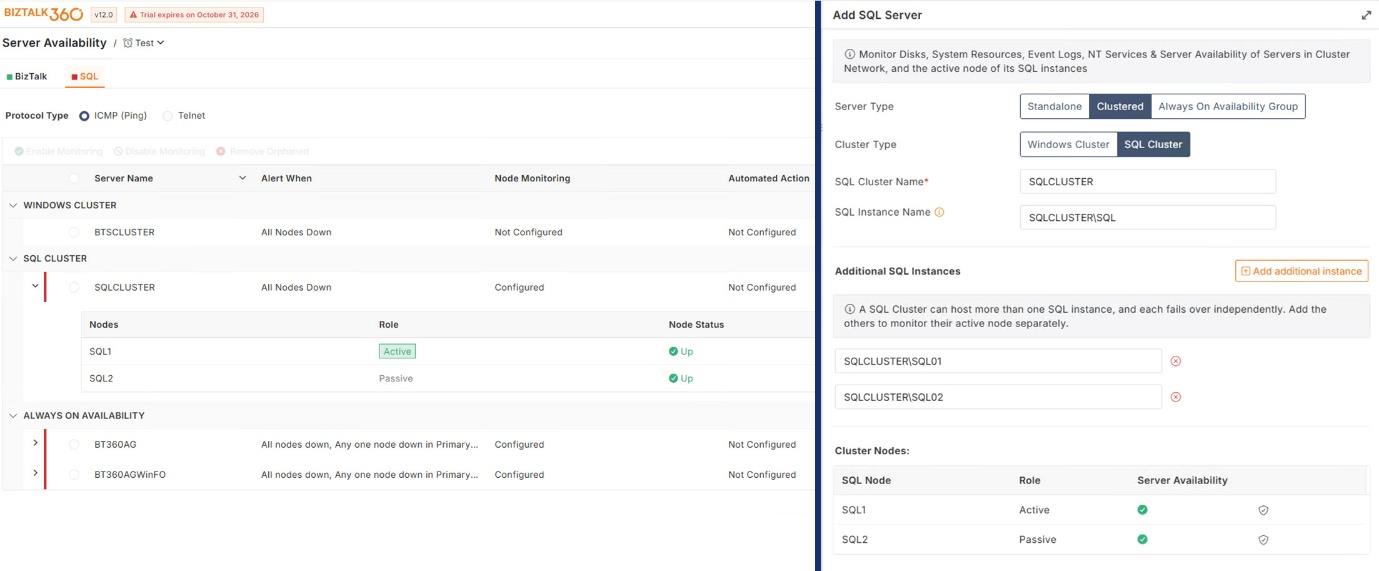
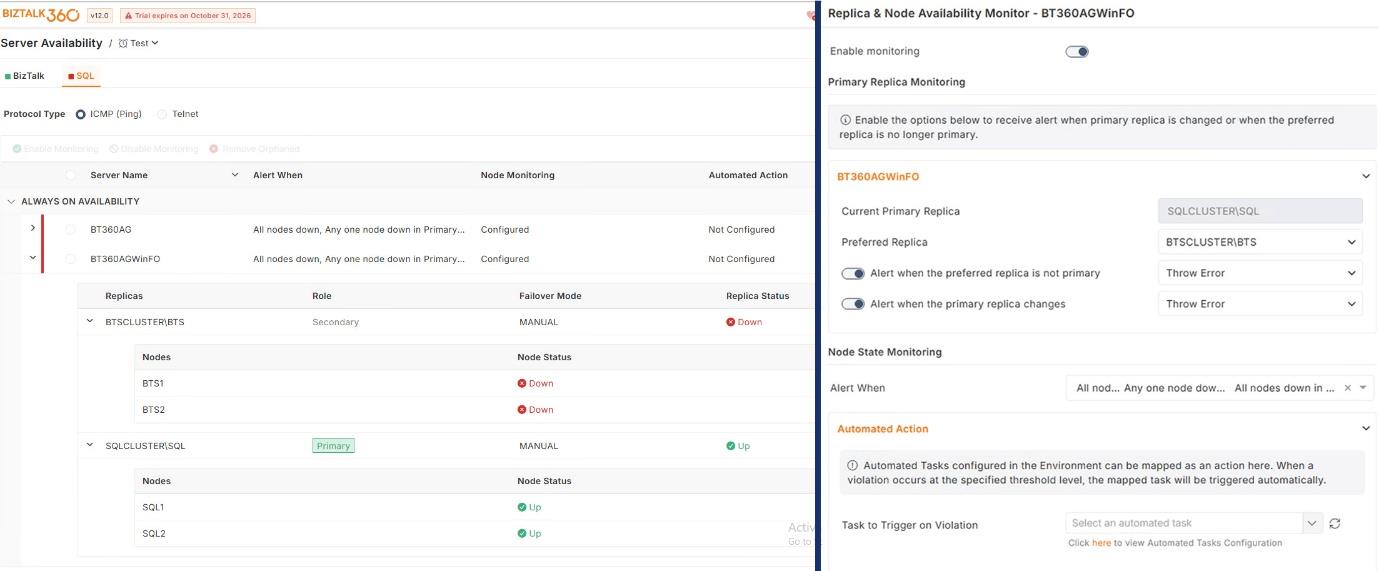
BizTalk360 tracks the primary replica of each availability group. You choose a preferred replica, and BizTalk360 can alert you when:
Both setups also include node availability checks. You can be alerted when any node goes down or only when all nodes are down. For Always On, you can scope these alerts to the nodes behind the primary replica or the secondary replicas. You can also map an automated action to run when a violation occurs, such as restarting BizTalk host instances so they reconnect cleanly after a failover.
As a result, a failover that used to show up only in event logs now raises a clear, actionable alert. Your BizTalk team learns about it from BizTalk360 instead of from a slowdown in message processing.
Here are a few situations BizTalk Administrators commonly encounter, and how SQL Server Availability Monitoring helps address them.
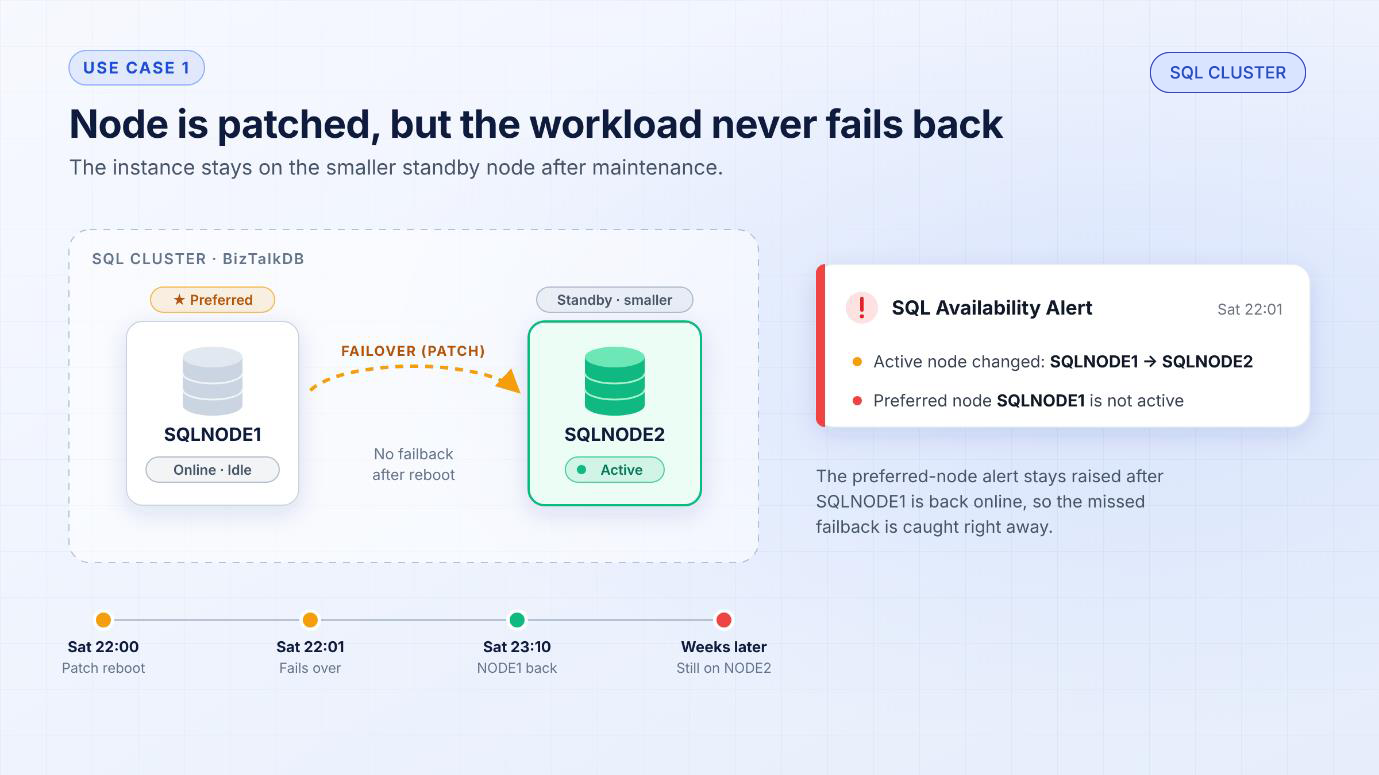
During a monthly patch window, the DBA team reboots SQLNODE1, the preferred node of the SQL cluster hosting the BizTalk databases. The instance fails over to SQLNODE2 as planned. SQLNODE1 comes back online an hour later, but nobody moves the instance back.
Everything keeps working, so no one notices. For the next few weeks, BizTalk runs on SQLNODE2, a smaller standby node. Throttling becomes more frequent at month-end, and the team spends time tuning host settings before anyone realizes the real cause.
With SQL Server Availability: Because SQLNODE1 is set as the preferred node, the preferred node is not active alert keeps firing after patching. The team knows right away that the failback step was missed and can move the instance back before performance suffers.
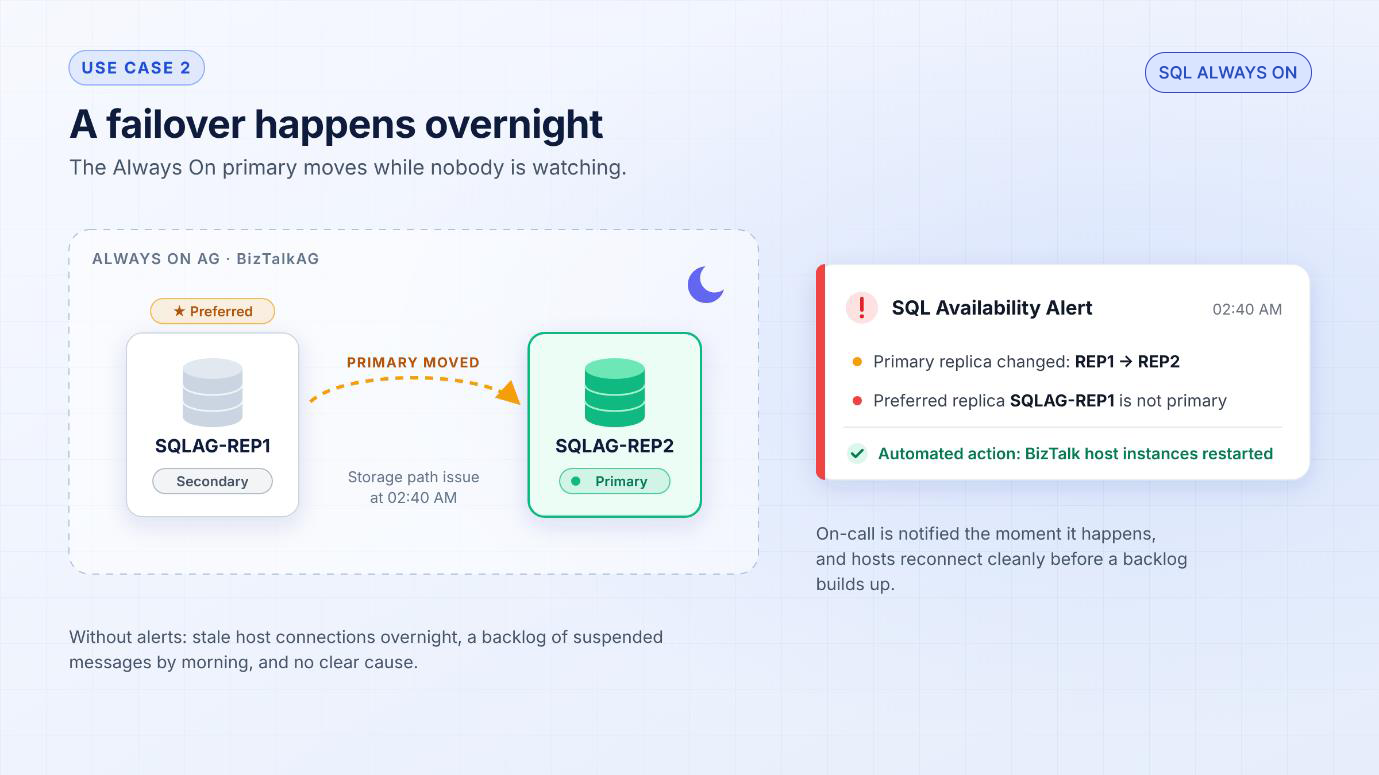
At 2:40 AM, a storage path issue triggers an automatic failover in an Always On Availability Group. The primary role moves from SQLAG-REP1 to SQLAG-REP2. BizTalk reconnects through the listener and processing continues, but a few host instances keep stale connections and start logging errors.
Integrated Automated Actions: Restoring Message Processing Without Waiting for the Morning Shift
The primary replica changed alert tells the on-call engineer exactly when the failover happened and what changed. Knowing about a problem doesn’t fix it, though. The stale host instance connections are still there, and suspended messages keep piling up until someone logs in and restarts the hosts.
Automated Actions handle that step. You link an Automated Task to the SQL Server Availability Monitoring configuration, and BizTalk360 runs the recovery as soon as the violation is detected, even at 2:40 AM with nobody watching.
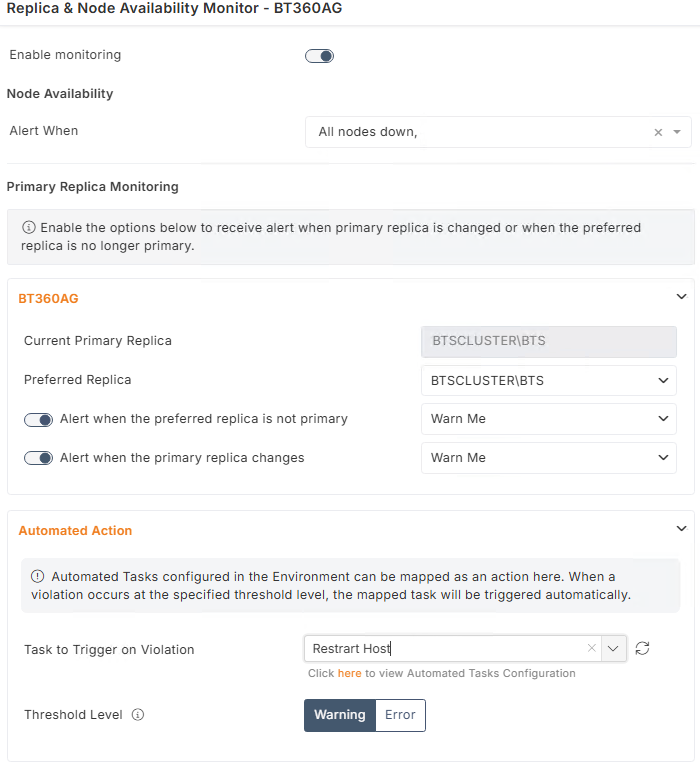
To avoid unnecessary restarts, the alarm-triggered task settings support:
An availability group spans two data centres, with the primary replica in the same site as the BizTalk servers and a secondary in the DR site. After a brief network outage, the primary moves to the DR replica. Every database call from BizTalk now crosses the WAN, and MSDTC transactions slow noticeably.
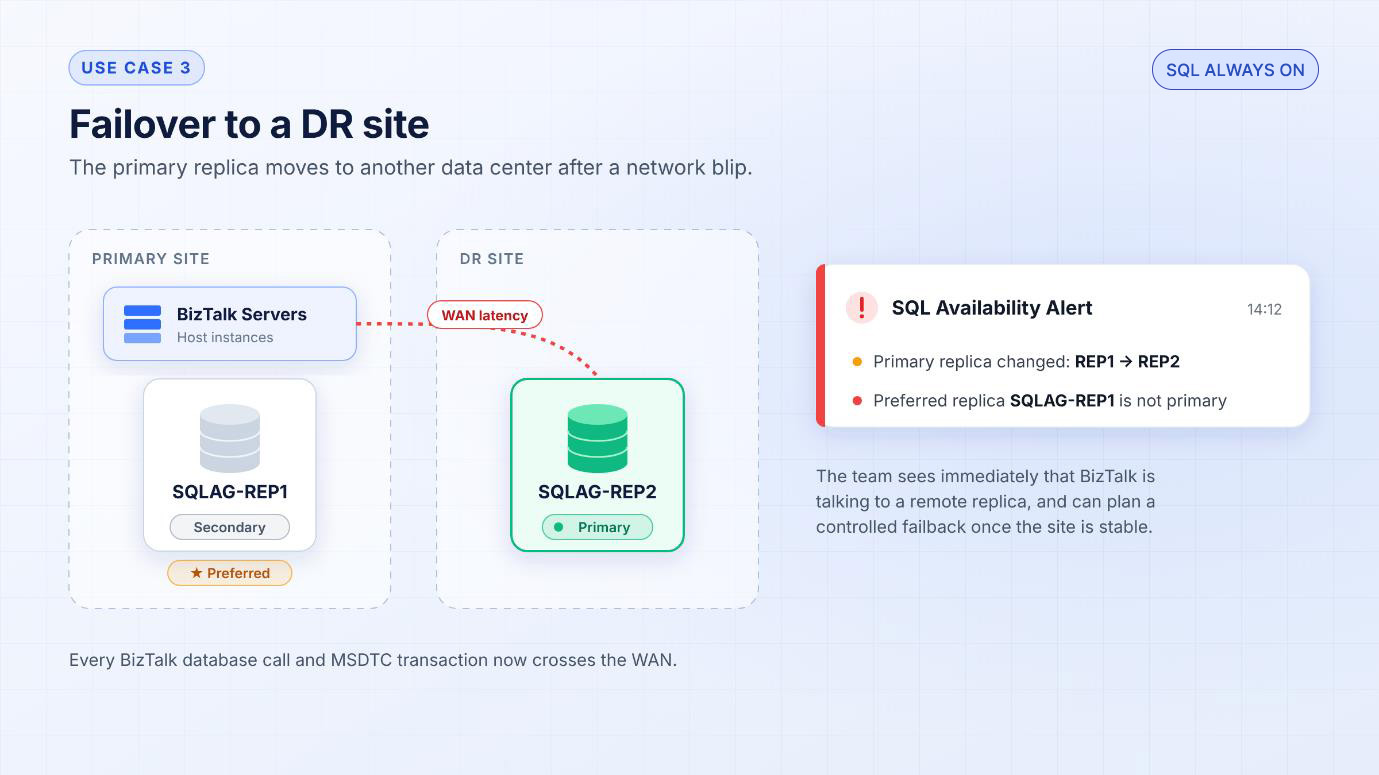
Preferred Replica Alert: The preferred replica is not primary alert immediately shows that BizTalk is now talking to a remote replica. Instead of chasing a generic slowdown, the team can plan a controlled failback as soon as the primary site is stable.
A cluster node with a failing network adapter drops out several times in one week. Each time, the instance fails over and recovers within seconds. Individually, none of these events look serious.
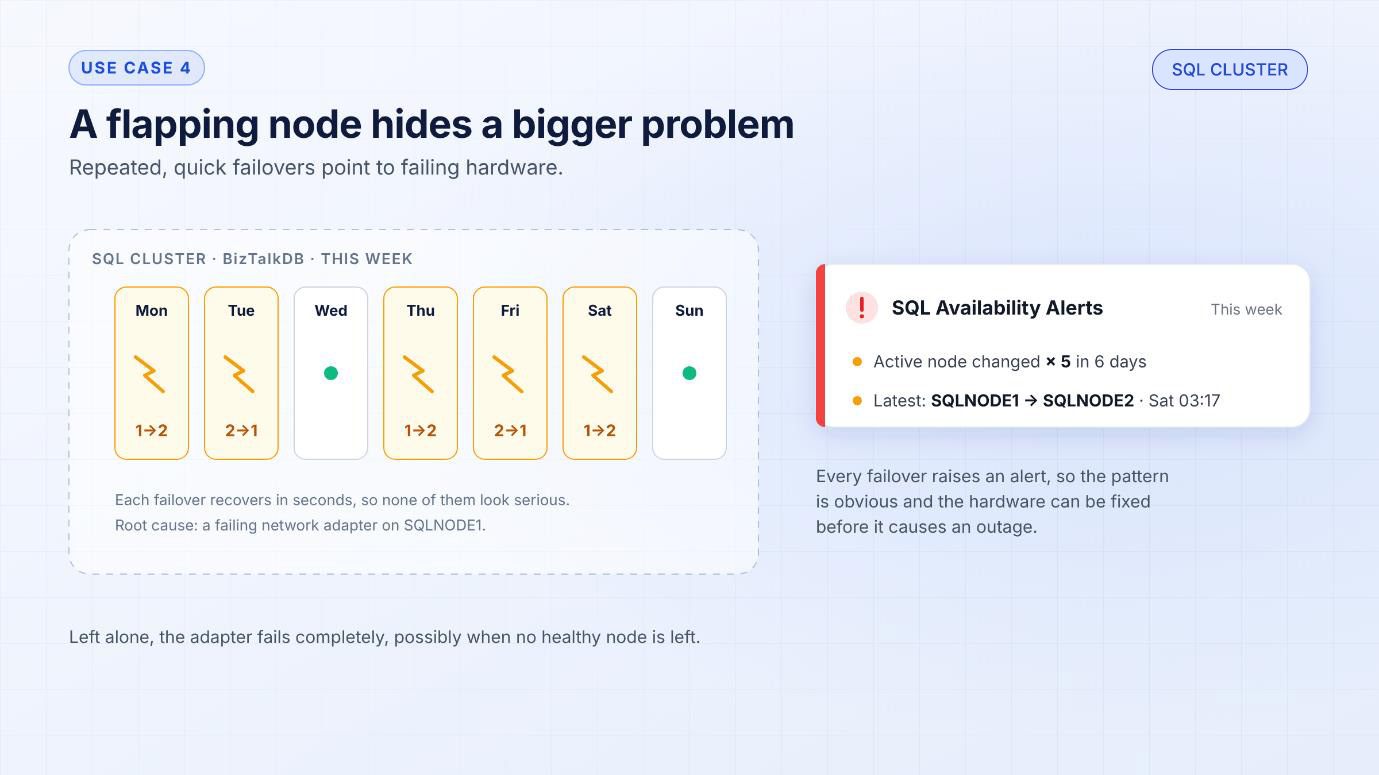
Preferred Active Node Switch Alert: Every failover raises an active node changed alert, so the pattern is easy to spot. Several alerts in a few days is a clear signal to investigate the hardware before it fails completely, possibly when no healthy node is left to take over.
In a two-node cluster, the passive node goes offline after a failed update. The active node is healthy, so BizTalk isn’t affected. However, the environment no longer has any high-availability protection.
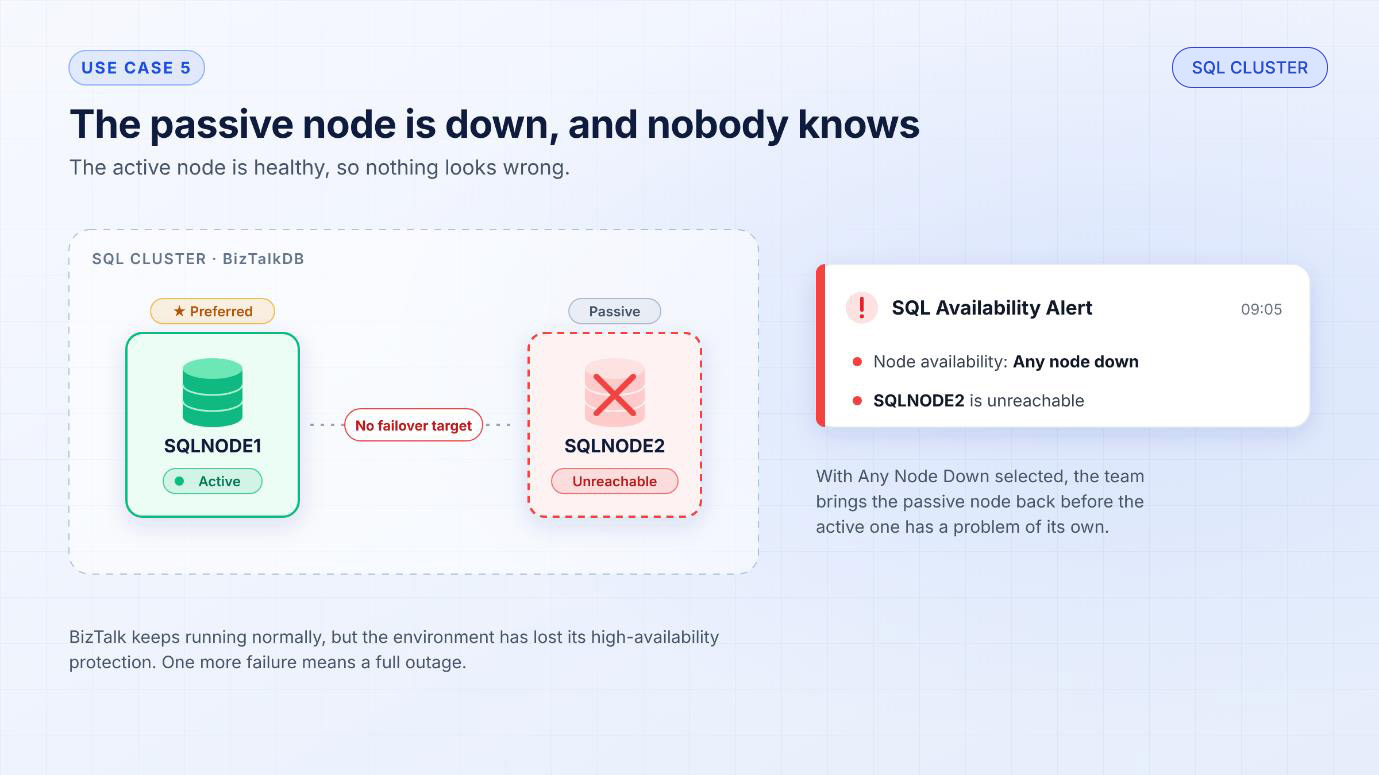
Passive Node Down Alert: With node availability set to Any Node Down, the team is alerted as soon as the passive node becomes unreachable. They can bring back the passive node to make sure the high availability is intact to avoid the full outage.
You’re alerted when the active node or primary replica changes, not hours later when message processing slows down. The on-call team knows exactly what happened and when, which cuts troubleshooting time dramatically.
You no longer need to log in to Failover Cluster Manager, open the Always On dashboard in SSMS, or search event logs on each server. BizTalk360 checks cluster and availability group state on every monitoring cycle and shows it in one place.
Preferred node and preferred replica settings let you define where BizTalk databases should run. If the workload drifts to a standby node or a DR replica and stays there, you’ll know right away.
Repeated failovers and nodes dropping offline often point to hardware, storage, or network issues. Seeing these patterns early lets you fix the root cause before it becomes a full outage.
Node availability alerts tell you when a passive node or secondary replica goes down, so you aren’t left running without failover protection without knowing it.
Map an automated action, such as restarting BizTalk host instances, to run when a violation occurs. Recovery starts even when no one is watching.
BizTalk administrators get direct insight into the SQL layer their integrations depend on. They don’t need to rely on another team to explain a performance drop.
The latest version of BizTalk360 offers more features with more control on your BizTalk environments. Try out the BizTalk360 which provides reliable monitoring with lesser manual interaction and more control with the automation!