

Ranjith Kumar
Author
Published on : Oct 31, 2025
Category : BizTalk360 Update
One of the key reasons we have introduced Office365 SMTP support in BizTalk360 was due to Deprecation of Basic authentication in Exchange Online across Office365 services. BizTalk360 relied on Basic Authentication to send email notifications, which involved using a username and password to authenticate with the SMTP server.
Although BizTalk360 secures these credentials using encryption, the underlying Basic Authentication model still carries security limitations:
To enhance the overall security posture of its cloud services, Microsoft announced the retirement of Basic Authentication for protocols such as SMTP, POP, IMAP, and Exchange Web Services, mandating the use of Modern Authentication (OAuth2).
OAuth2 is a more secure, token-based authentication mechanism that eliminates the need for static credentials. By adopting Office365 SMTP with OAuth2, BizTalk360 ensures seamless and secure email delivery while staying fully aligned with Microsoft’s modern authentication standards.
Modern Authentication in Office365 is built on the OAuth2 and OpenID Connect protocols, leveraging Azure Active Directory (AAD) for secure user and application identity management. This mechanism replaces the traditional username-password model with a secure, token-based approach that ensures authentication and authorization are handled without exposing user credentials.
To obtain the necessary tokens from Azure Active Directory (Azure AD), the login process must be completed using the Microsoft login and consent page. During this step, the user must grant consent for the application to send emails on behalf of the configured email address. Once the login and consent process is successfully completed, Azure AD issues two key tokens to the application:
These tokens are securely retrieved from Azure AD’s token endpoint during the authentication flow and are encrypted and stored in the application’s database. Whenever the Access Token expires, the Refresh Token is used to request a new one from Azure AD, ensuring continuous and secure email communication.
This token-based mechanism enhances security and provides a seamless, password less experience aligned with Microsoft’s Modern Authentication standards.
To ensure seamless and secure email communication, BizTalk360 integrates deeply with Office365 OAuth2-based authentication. This modern approach eliminates dependency on static credentials and ensures continuous email delivery through secure token management. The complete configuration involves below key components working together.
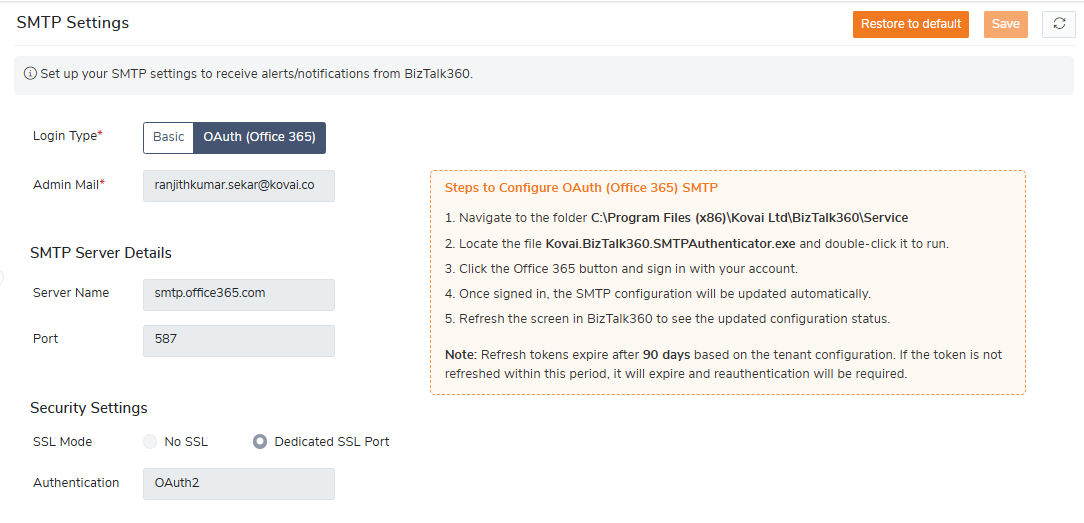
In the BizTalk360 portal, users can switch to the new OAuth (Office 365) login type and save the configuration. Once OAuth is selected, the portal displays the steps required to complete the configuration, guiding users through the setup process.
After completing the configuration, details such as the admin email, port, and server name are displayed along with the authentication method set to OAuth2.
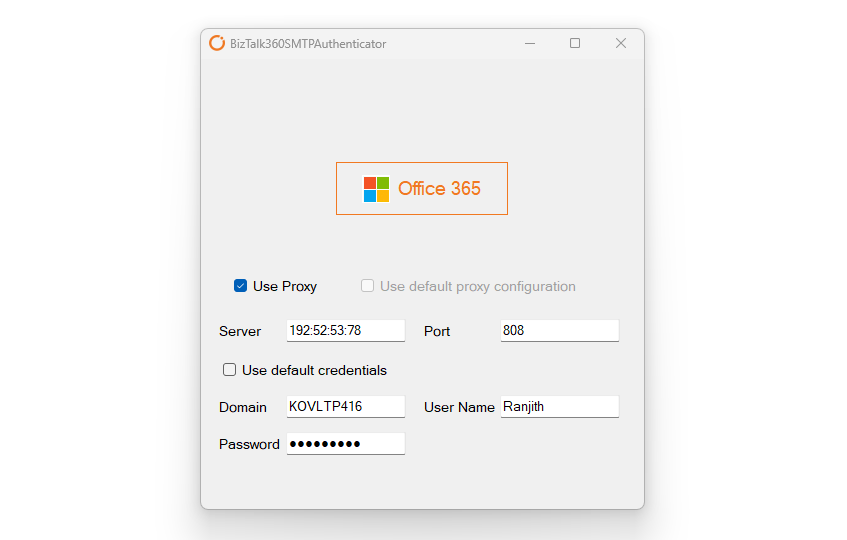
To complete the SMTP setup, users must run the Kovai.BizTalk360.SMTPAuthenticator.exe, which is available on machines where the Monitoring Service is installed. Office 365 button appears in the app. Clicking this button triggers the Microsoft login dialog, where the user completes multi-factor authentication (MFA) or standard login. After successful login, the app sends a test email to verify the configuration. If the test succeeds:
The authenticator app also supports proxy settings. If gateway setting is configured in BizTalk360, those settings are automatically displayed. Otherwise, users can manually provide the settings before clicking the Office 365 button.
Once the login and authentication are completed successfully, the Monitoring sub-service takes over to manage token lifecycle and email delivery.
The refreshed token is then used for all subsequent email communications, ensuring continuous, secure, and reliable delivery without user intervention.
When using OAuth2 authentication, the access token is tied to a specific mailbox identity usually the account used during the consent and authentication process. As a result, attempting to change the from address to another mailbox (noreply@system.com) can lead to permission errors such as:
“5.7.60 SMTP; Client does not have permissions to send as this sender.”To overcome this challenge, email templates in BizTalk360 are migrated to the logged-in user’s email address as the from address.
Integrating Office365 SMTP with OAuth2 authentication in BizTalk360 brings several advantages:
With the introduction of SMTP OAuth2 support, several key features including Monitoring, Analytics, and Send as Email (from the BizTalk360 Portal) now leverage secure, modern authentication for all email communications.
In addition, MailBee a robust and high-performance .NET email library, has been completely integrated into BizTalk360 to handle all email operations. This enhancement improves efficiency, boosts reliability, and ensures seamless management of OAuth-based SMTP connections across every mail-enabled feature.
With Microsoft’s move to modern authentication, adopting Office365 SMTP support with OAuth2 in BizTalk360 keeps users compliant, secure, and future-ready. This update removes the risks of Basic Authentication and ensures reliable, consistent email communication across all BizTalk360 features.
To know more about the BizTalk360 features, try out the free trial or book a demo.