

Saranya
Author
Published on : Jul 21, 2026
Category : BizTalk360 Update
Keeping enterprise integrations running smoothly requires more than just monitoring—it demands proactive visibility, and intelligent automation. With BizTalk360 v11.9, we have introduced enhancements designed to help administrators detect issues earlier, reduce manual effort, and strengthen the security of their BizTalk environments.
Modern integrations often depend on web applications and APIs hosted on IIS. Identifying recurring HTTP errors or API failures often required manually reviewing IIS log files.
With IIS Log Monitoring, BizTalk360 can now monitor IIS log entries and alert administrators when predefined thresholds are exceeded.
You can configure filters based on:
This allows you to focus only on the log entries that matter.
You can even configure an Automated Task to restart the IIS Application Pool or a BizTalk application, reducing downtime and accelerating recovery.
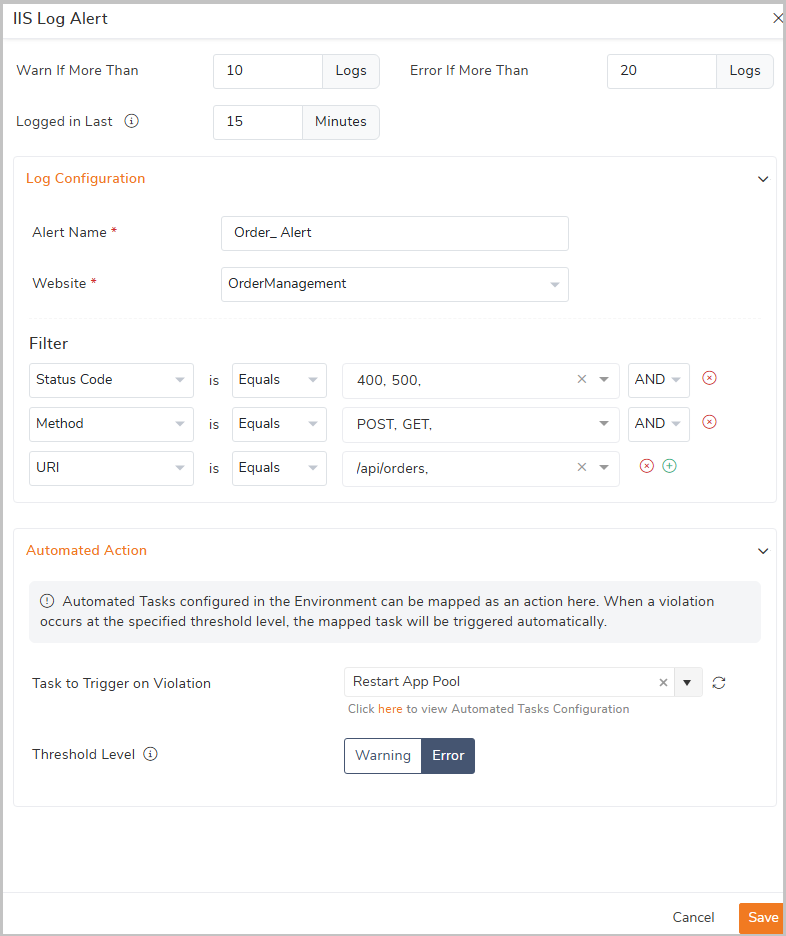
Suppose your Order Management API suddenly starts returning HTTP 500 errors when new version of API’s deployed in the production or after any windows patch update.
Instead of waiting for business users to report failures, configure an alert to monitor:
When the configured threshold is exceeded, BizTalk360 immediately raises an alert. You can also configure an Automated Task to automatically restart the corresponding IIS Application Pool or BizTalk application, helping restore the service quickly, reduce downtime, and minimize manual intervention.
In complex Integration environments, IIS servers can generate thousands of log entries every hour. Collecting each event of logs consumes storage and makes troubleshooting more difficult.
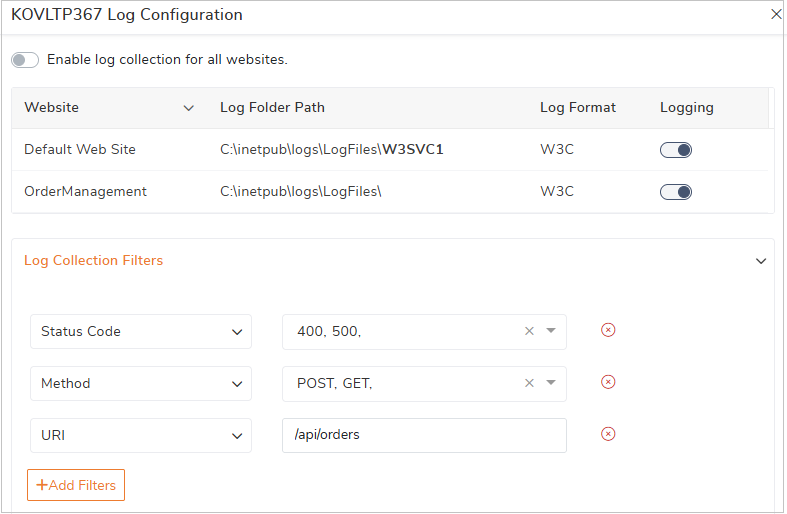
BizTalk360 now allows you to optimize IIS log collection by filtering logs before they are collected.
Rather than collecting logs for every application hosted on IIS, you can collect only 400 and 500 errors for your public APIs, significantly reducing storage while improving troubleshooting efficiency.
Configure collection based on:
The URI filter supports Contains matching, making it easy to monitor all requests to a specific endpoint without configuring multiple rules.
Monitoring alerts often contain technical information that business users may find difficult to interpret.
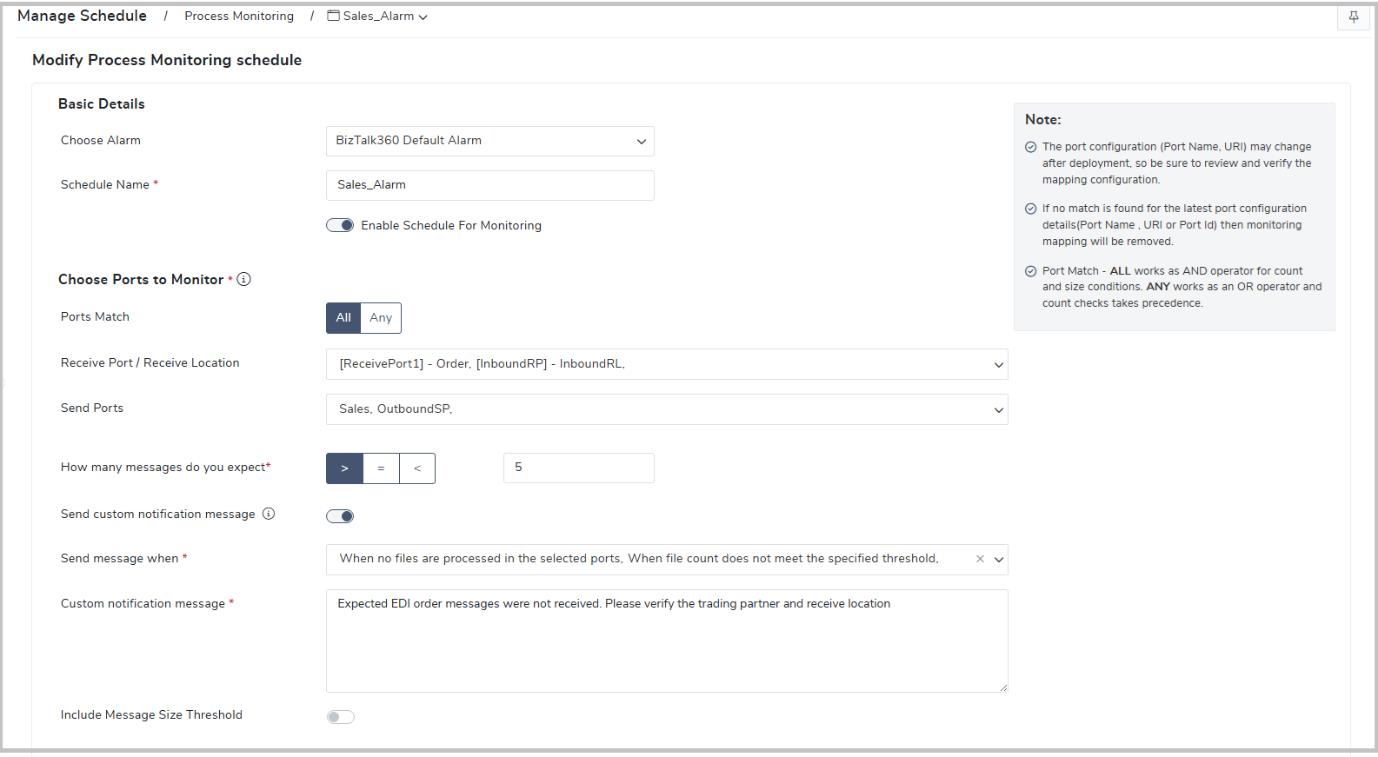
With Custom Notification Messages, Process Monitoring now lets you send the clear instructions that BizTalk operators can take actions with minimal BizTalk Expertise whenever message processing thresholds are not met.
The custom message is sent when:
Consider an EDI integration where purchase orders are expected every hour. Configure Process Monitoring to expect a minimum number of EDI order messages within a one-hour interval. If no messages are received during the configured period, BizTalk360 detects the violation and raises an alert.
Instead of sending a technical notification, configure a Custom Notification Message to provide clear, business-friendly guidance, such as:
“Expected EDI order messages were not received. Please verify the trading partner and receive location.”
This notification immediately informs operations and business support teams about the nature of the issue and the recommended action, without requiring any BizTalk knowledge.
Keeping BizTalk environments healthy requires regular health checks.
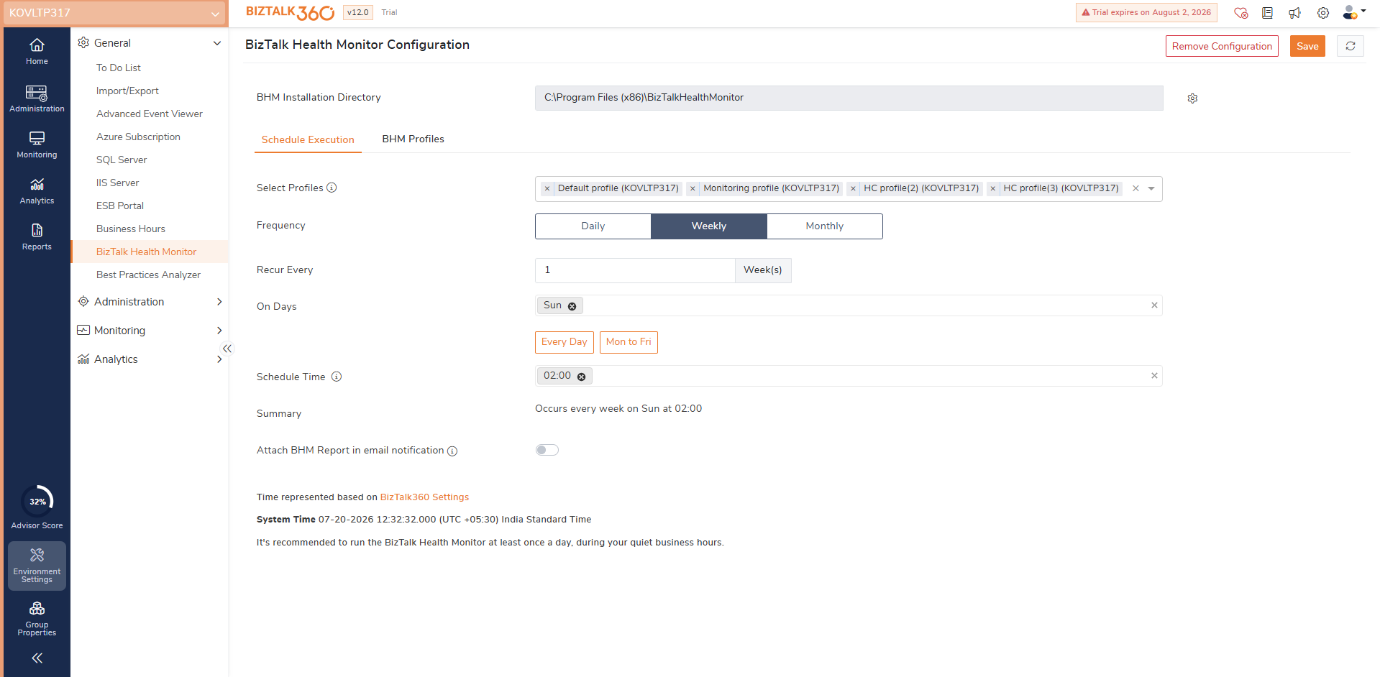
BizTalk360 now offers enhanced scheduling options for BHM with flexible:
Administrators can schedule different BHM profiles to match maintenance windows and operational requirements.
Run a comprehensive health check every Sunday during planned maintenance while scheduling a lightweight monitoring profile every weekday morning before business hours begins.
Automation is powerful, but administrators often want control over maintenance activities.
BizTalk360 now introduces Manual Trigger support for BHM Maintenance Tasks.
Instead of executing recommendations automatically, administrators can review the generated BHM report and manually trigger only the required maintenance tasks.
A BHM report recommends purging old tracking data and deleting orphaned DTA instances.
The administrator reviews the recommendations and executes only the approved maintenance tasks, ensuring production changes remain fully controlled.
The Adapter Properties Export enhancement now exports Send Ports and Receive Ports with their adapter properties, making configuration reviews and migrations much easier.
During an environment migration or configuration audit, administrators can export complete adapter settings without manually documenting each property.
Organizations frequently provide dashboard access to support teams while restricting configuration changes.
BizTalk360 now introduces enhanced role-based access for the Monitoring Dashboard and BizTalk Group Dashboard. Users can continue to view dashboard health and status while navigation to underlying features is controlled by their assigned permissions.
Security continues to be a key focus in BizTalk360.
This release introduces several important security enhancements, including:
These improvements help protect sensitive configuration data and strengthen the overall security posture of the platform.
BizTalk360 v11.9 delivers meaningful improvements across monitoring, automation, usability, and security.
Upgrade to BizTalk360 v11.9 to take advantage of these latest enhancements and keep your integrations running smoothly.
BizTalk360 v11.9 Release Notes – https://docs.biztalk360.com/docs/v119
11.9 feature videos – https://youtu.be/szfI5l-uDOo