

Sandro
Author
Published on : Sep 24, 2021
Category : BizTalk Server
In the first part of this mini-series blog post, we discussed how to create a URI connection to connect to the Oracle database without using tnsnames.ora along with the advantages and limitations of this approach. In this second part, we will explain how you can establish a connection to the Oracle database using the tnsnames.ora.
In this approach, the connection URI provided by the adapter client contains only the net service name specified in the tnsnames.ora file. The adapter extracts the connection parameters such as server name, service name, port number, etc. from the net service name entry in the file. To use this approach, the computer running the Oracle client must be configured to include the net service name for the Oracle database in the tnsnames.ora file.
This approach is a little bit more complex to do. First, you still need to understand all the necessary configurations that you need to configure to connect to Oracle, at least the first time. You also need to perform additional configurations outside the BizTalk Server Administration Console: setting up the tnsnames.ora file.
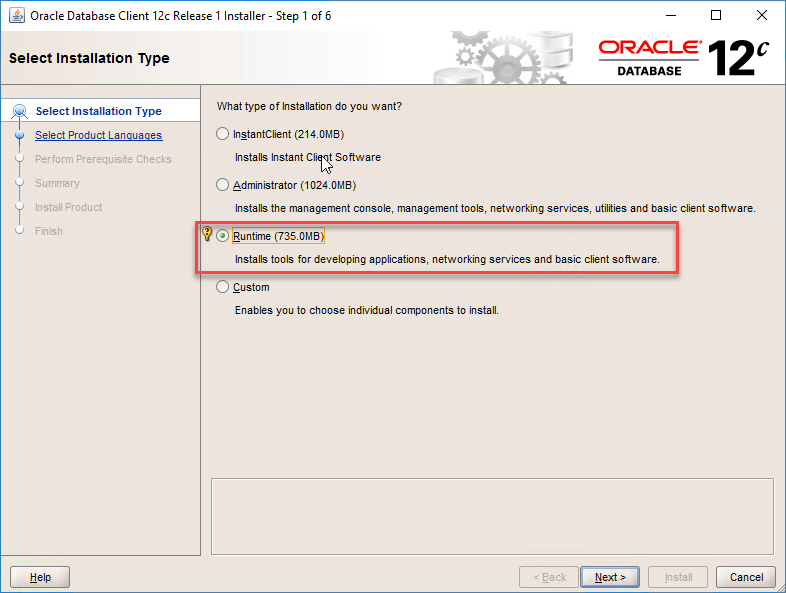
By default, the tnsnames.ora file is located in the ORACLE_HOME/network/admin directory. Oracle Net will check the other directories for the configuration file. For example, the order checking the tnsnames.ora file is as follows:
The directory can be specified by the TNS_ADMIN environment variable. If the file is not found in the specified directory, then it is assumed that the file does not exist.
If the TNS_ADMIN environment variable is not set, then Oracle Net checks the ORACLE_HOME/network/admin directory.
TNSNAMES.ORA is a SQL*Net configuration file that defines databases addresses for establishing connections to them. It contains network service names mapped to connect descriptors for the local naming method, or net service names mapped to listener protocol addresses.
Note: Due to an Oracle Client limitation, the DataSourceName parameter (net service name) in the connection URI cannot contain more than 39 characters if you are performing operations in a transaction. Therefore, make sure that the value specified for the DataSourceName parameter is less than or equal to 39 characters if you will be performing operations in a transaction.
In the preceding example:
Here is a complete example:
ORACLE_APP_QA=

   (DESCRIPTION =

      (ADDRESS_LIST =

         (ADDRESS = (PROTOCOL = TCP)(Host = 192.168.1.1)(Port = 1524))

         )

        (CONNECT_DATA =

           (SERVICE_NAME = APPQA)

        )

   )
The Oracle Database adapter connection URI adheres to this basic format, and is implemented as follows:
Or, in more advanced scenarios:
Where:
Once again, if you try to specify this type of URI, by default, the Oracle Database adapter throws an exception when the Oracle database credentials are specified in the connection URI. This is because these credentials are represented as plain text in the connection URI, and this poses a security risk.
To allow this type of URI you need to set the AcceptCredentialsInUri binding property to control whether the connection URI can contain credentials for the Oracle database.
However, the AcceptCredentialsInUri binding property is not available in BizTalk Server in the Binding tab while configuring a WCF-Custom or WCF-OracleDB receive or send port. To set the value of the AcceptCredentialsInUri binding property, you must open the adapter bindings file (XML file) that is created after you have generated metadata using the Consume Adapter Service Add-in, and then locate this binding property in the file. Specify an appropriate value for this binding property, save the binding file, and then import the binding file in BizTalk Server.
Note: It is not recommended that you do set AcceptCredentialsInUri to true.
As a sample, when we are generating Oracle schemas to our project via Add > Add Generated Items… from our Visual Studio solution, and select Consume Adapter Service, this will open a Consume Adapter Service window where we perform the following actions:
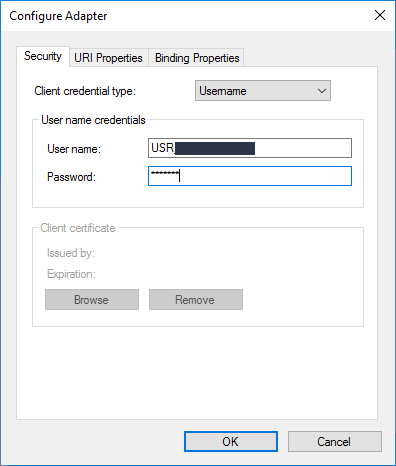
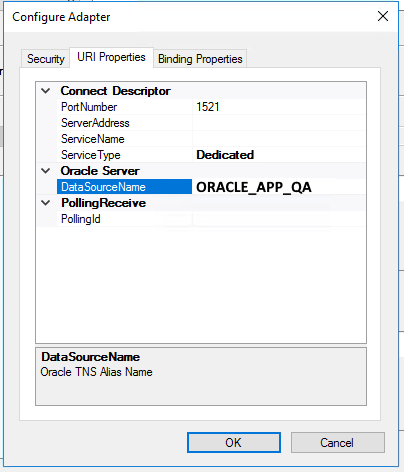
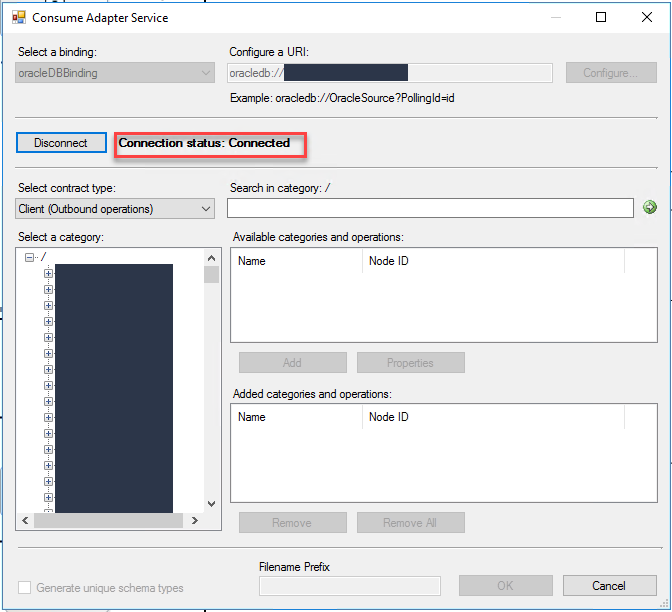
If everything is ok, you can connect and navigate through Oracle to generate the correct artifacts.
