


Vaishnavi Thiruppathi
Author
Published on : Sep 12, 2026
Category : BizTalk360 Monitoring
Process Monitoring in BizTalk360 tracks the number of messages processed by your receive ports and send ports, so you know when an expected flow of messages has gone quiet. You set the threshold you expect over a time window, and if it isn’t met, your team is notified because there is a business impact. This helps teams catch silent failures, like a partner not sending files or orders not reaching a backend system, before they turn into business problems.
But knowing that something went wrong is only half the battle knowing what to do about it is where teams often lose valuable time. That gap is exactly what the Process Monitoring Custom Message enhancement addresses.
Let’s consider a typical scenario where a Process Monitoring schedule detects that no files were processed on a business-critical port within the expected window. An alert is triggered and reaches the operations team, and a business stakeholder who doesn’t have deep BizTalk expertise.
The alert says something like: “Threshold violated: message count 0, expected greater than 5.”
The message received is technically accurate, but practically insignificant to anyone who isn’t familiar with BizTalk’s. The recipient may not know:
This can lead to additional back-and-forth between business and technical teams. the business user contacts the integration team, the integration team logs into the BizTalk Admin Console, and only then does actual troubleshooting begin. This delay matters even more for time-sensitive processes, like order flows or partner integrations with strict SLAs. Every extra minute spent figuring out a violation alert brings the team closer to missing a deadline, breaking compliance, or upsetting a customer.
What users need is not just an alert that reports a threshold violation, but a notification that provides clear context and actionable guidance on what to check next. What’s New: Custom Notification Messages in Process Monitoring. With this enhancement, BizTalk360 allows users to attach a tailored, business-friendly message to any Process Monitoring schedule. When the monitored ports don’t meet the expected message-processing rule, the notification no longer just reports the failure it explains it, in language the recipient can act on immediately.
This means the same alert that once looked like a raw threshold violation can now be transformed into a clear, structured explanation of what likely went wrong and the exact steps to verify and resolve it without requiring the reader to be a BizTalk expert.
The custom notification message can be configured directly within the Process Monitoring schedule under Manage Schedule → Process Monitoring, so no separate configuration is required. Set up the schedule as usual. Choose the alarm (for example, “Transaction Tracker”), name the schedule, and enable it for monitoring.
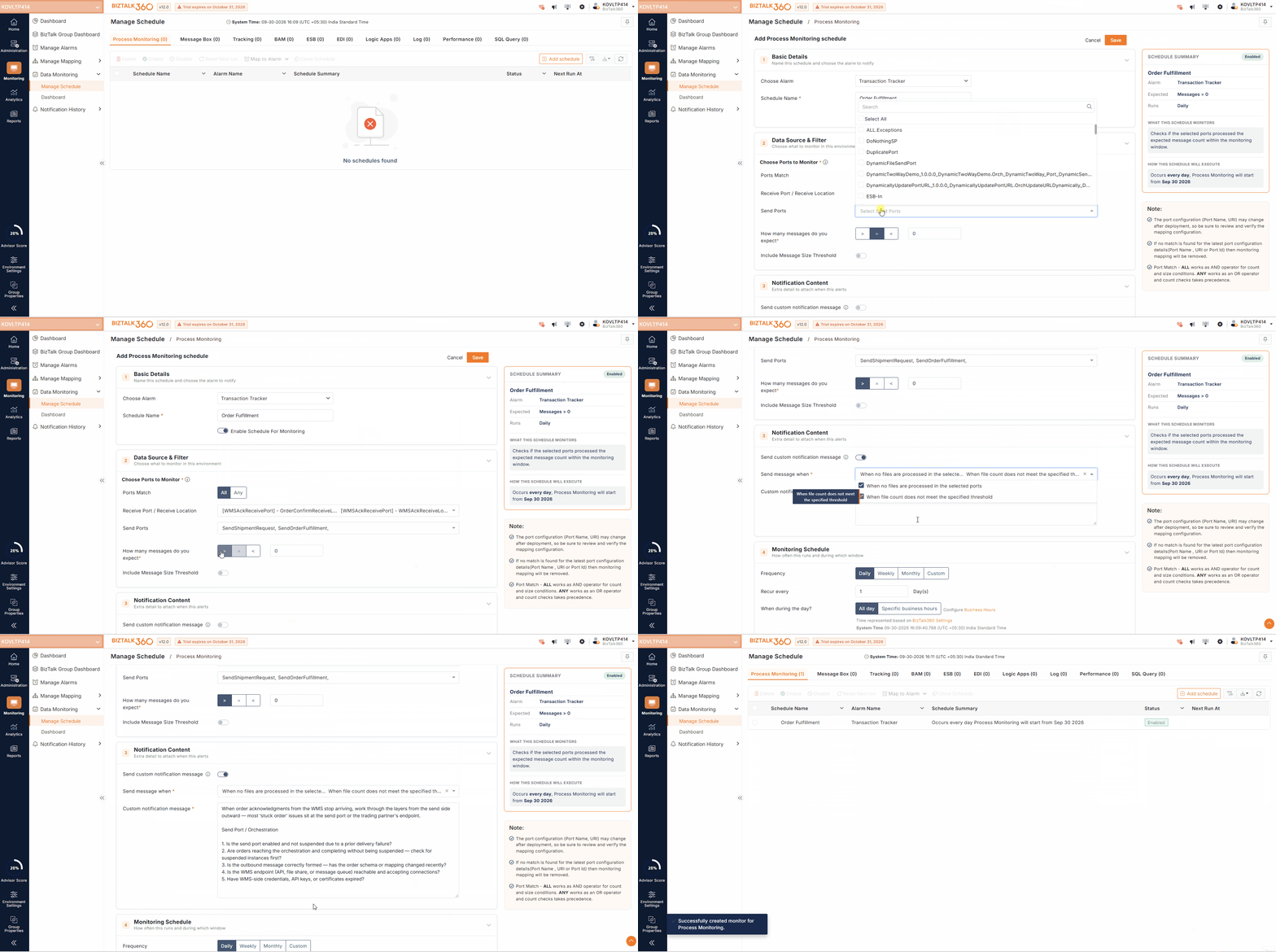
Because the message is fully customizable, each Process Monitoring schedule can provide guidance depending on the business process they monitor. Example – an order fulfilment schedule can point administrators to check the warehouse management system’s connectivity, while a different schedule monitoring an internal application interface can point to its own set of checks, like database connectivity or service availability.
Consider a retail chain that pushes purchase orders from its central ERP system through BizTalk to a third-party warehouse management system (WMS) at its distribution center, expecting a confirmation acknowledgment back for every order sent. A “Order Fulfilment” Process Monitoring schedule watches the outbound send port to the WMS alongside the inbound acknowledgment receive location, expecting more than zero messages per monitoring cycle during business hours.
One afternoon, store orders stop generating acknowledgments from the WMS. Without a custom message, the on-call administrator receives a bare threshold alert and must manually start investigating — checking the orchestration, then the send port, then the WMS endpoint, and so on, often while store managers are already asking why replenishment orders haven’t been confirmed.
With a custom notification message enabled, the alert can include a guided troubleshooting checklist tailored to this specific process: “When order acknowledgments from the WMS stop arriving, work through the layers from the send side outward — most ‘stuck order’ issues sit at the send port or the trading partner’s endpoint.
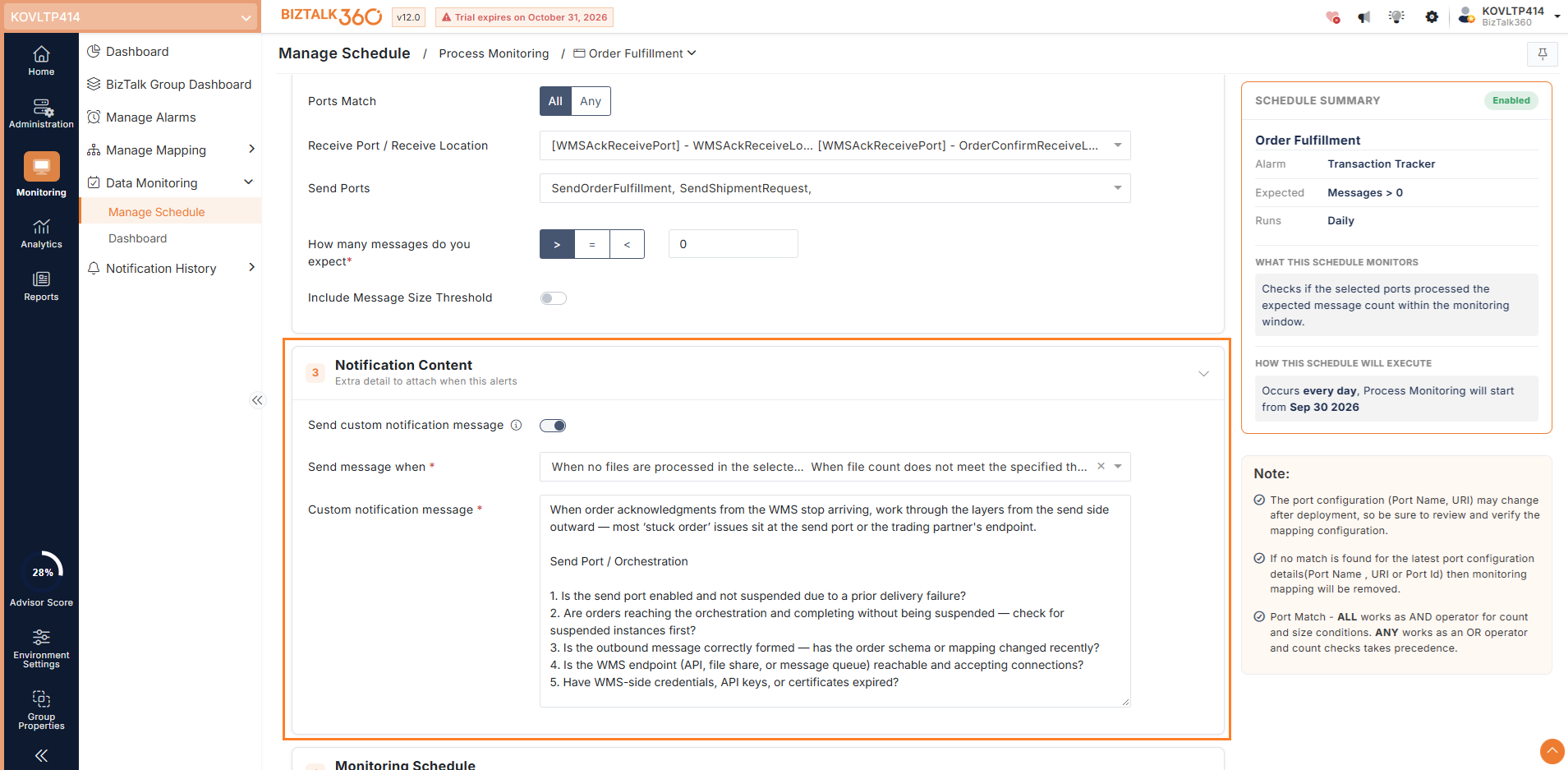
This single notification does what previously took a support ticket, a login to the Admin Console, and a call to the warehouse team. The administrator immediately knows to check for suspended orchestration instances, verify the send port’s status, and confirm the WMS endpoint is reachable — all before opening BizTalk360 or the Admin Console. If the root cause turns out to be an expired API key on the WMS side, the team can resolve it within minutes of the alert, well before store managers escalate the missing restocking orders.
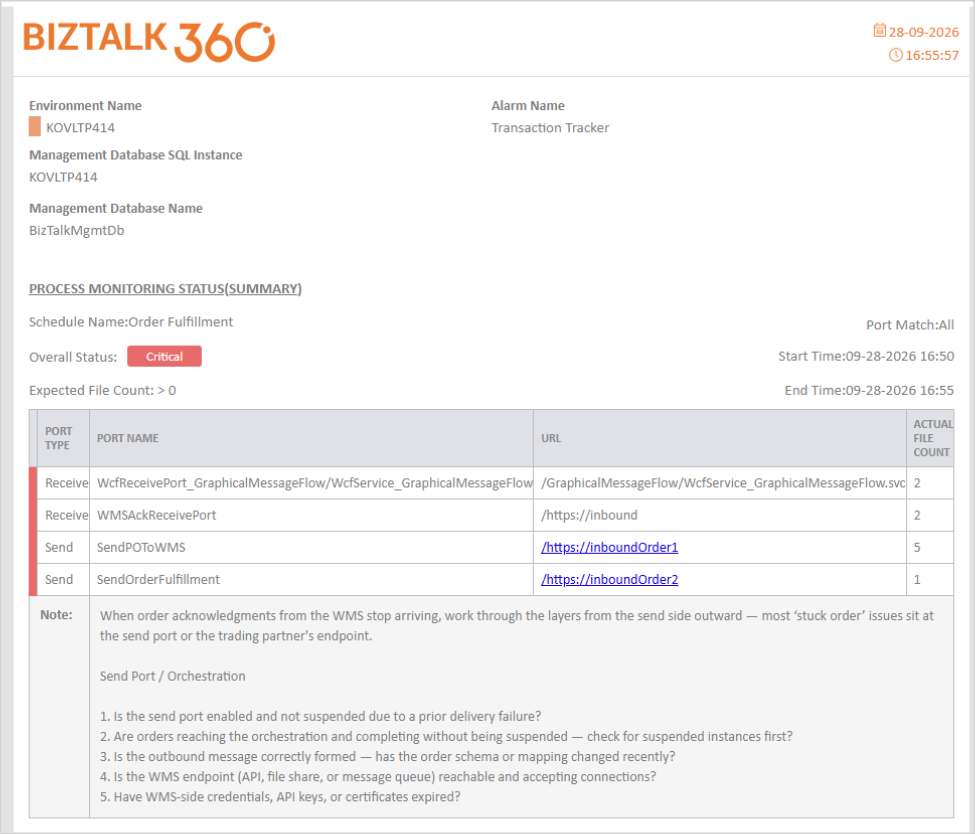
Because this message is reusable across every alert this schedule generates, the same guidance reaches whoever is on call, even someone new to the team — making tribal knowledge part of the alert itself rather than something locked in a senior engineer’s head.
Reduced Investigation Effort: Responders don’t want to invest their time in figuring out where to look, the message tells them.
Business-Friendly Communication: Stakeholders without technical BizTalk knowledge can understand what’s happening and why, reducing unnecessary escalations to the integration team.
Consistent Troubleshooting Standards: Custom messages can include predefined troubleshooting steps, helping team members follow a consistent approach when responding to process monitoring alerts, including those who are new to the role.
Tailored to Business Context: Because each schedule can carry its own message, alerts stay relevant to the specific process being monitored, whether it’s order fulfilment, EDI, or internal application integration.
The Process Monitoring Custom Message capability is a small configuration change with an outsized operational impact. By letting teams attach clear, actionable, business-friendly guidance directly to threshold-based alerts, BizTalk360 closes the gap between detecting a problem and understanding how to fix it. Instead of alerts that simply report failure, teams get alerts that guide them toward resolution, reducing downtime, easing pressure on integration teams, and keeping business-critical processes like order fulfilment and partner transactions running smoothly.
To know more about the BizTalk360 features, try out the free trial or book a demo.