

Nekalya Kundan
Author
Published on : May 30, 2026
Category : BizTalk360 Update
In modern enterprise environments, proactive monitoring is essential to ensure system reliability and minimize downtime. BizTalk360 provides comprehensive monitoring capabilities with intelligent alerting that helps teams quickly identify and respond to critical issues.
By integrating BizTalk360 with Jira, monitoring alerts can automatically be converted into trackable Jira tickets. This enables centralized incident management, improves accountability, reduces manual effort, and enhances collaboration between operations and support teams.
In BizTalk environments, SQL Servers are essential because BizTalk Server databases handle message processing, tracking, configurations, and operational data. Any issue with the SQL Server can directly impact BizTalk performance and message flow. With BizTalk360, administrators can continuously monitor the health, availability, and performance of SQL Servers from a centralized monitoring platform.
For example, if the SQL Server hosting the BizTalk databases becomes unavailable or experiences high CPU or memory usage, BizTalk360 immediately detects the issue and triggers an alert. Through the Jira notification channel, the alert is automatically converted into a Jira ticket with the violation details. This enables support teams to quickly assign ownership, track the incident, and resolve it faster. Reducing downtime and improves operational efficiency.
The JIRA notification channel in BizTalk360 enables teams to link monitoring alerts to Jira, a widely used platform for tracking and managing issues. This integration helps teams organize incidents, assign ownership, set priorities, and monitor progress in a centralized, structured way.
With this capability, BizTalk360 automatically converts alerts into tickets whenever a threshold is violated or an issue is detected. Instead of relying on traditional methods like email, notifications are sent via REST APIs, ensuring that every incident is captured as an actionable task. This approach ensures that critical problems are not only notified but also effectively tracked and resolved on time.
To start using the JIRA notification channel, configure the JIRA channel in BizTalk360 and associate it with an alarm. Whenever a monitoring violation occurs, a corresponding ticket is automatically created in Jira with relevant details.
An API Token is a simple and commonly used method for authentication. It is easy to configure and can be set quickly without complex permissions configurations.
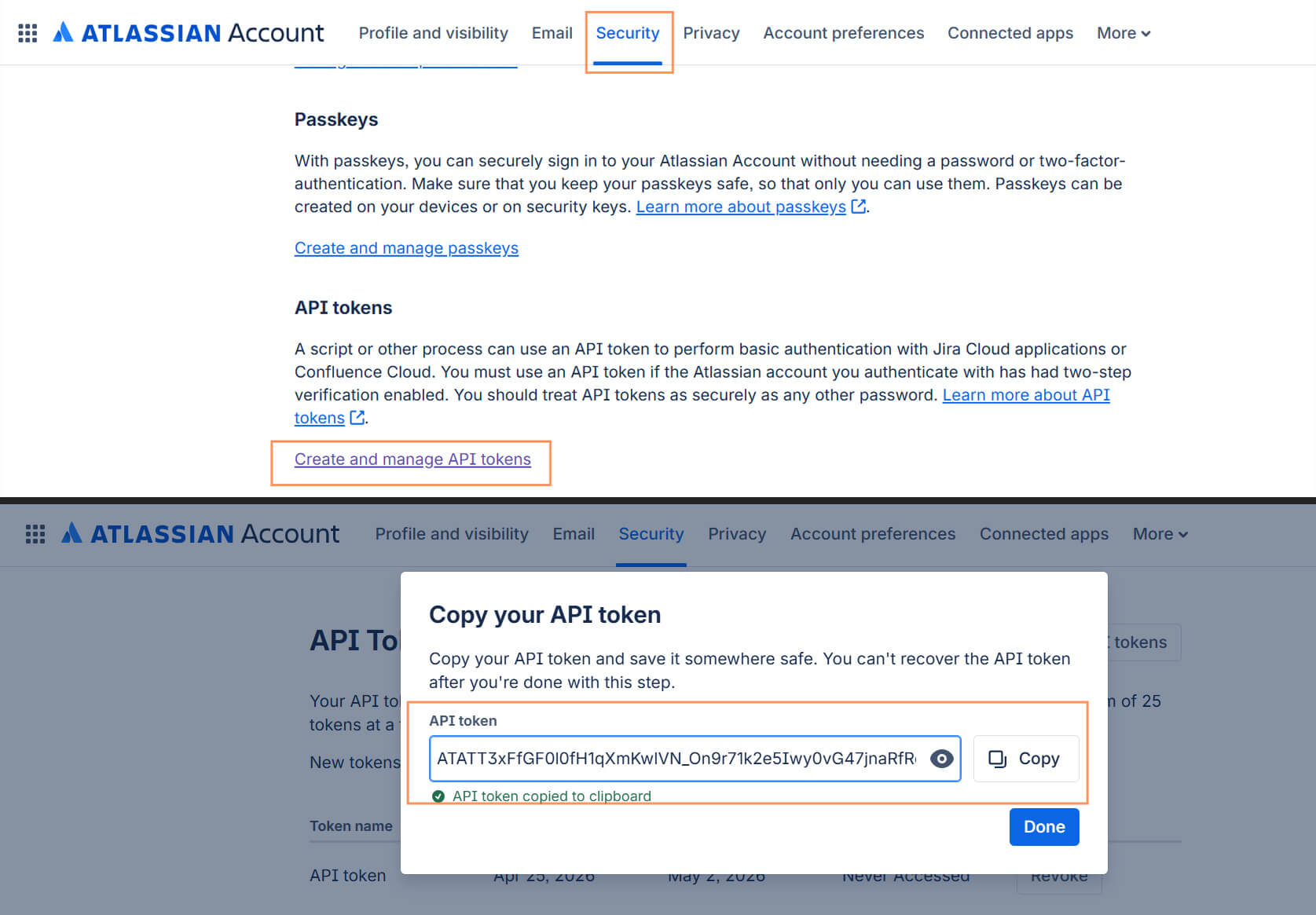
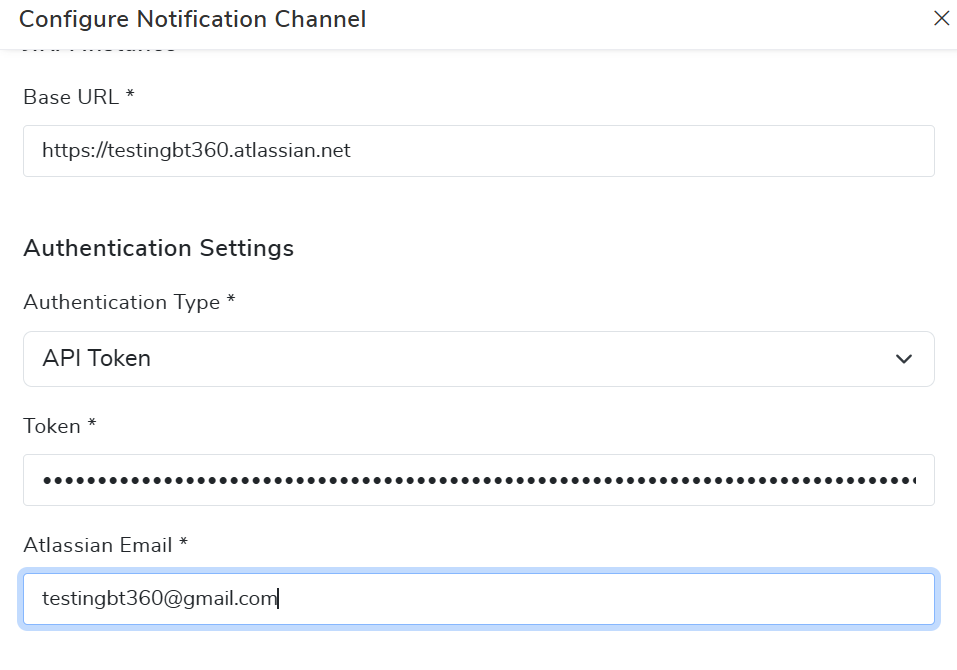
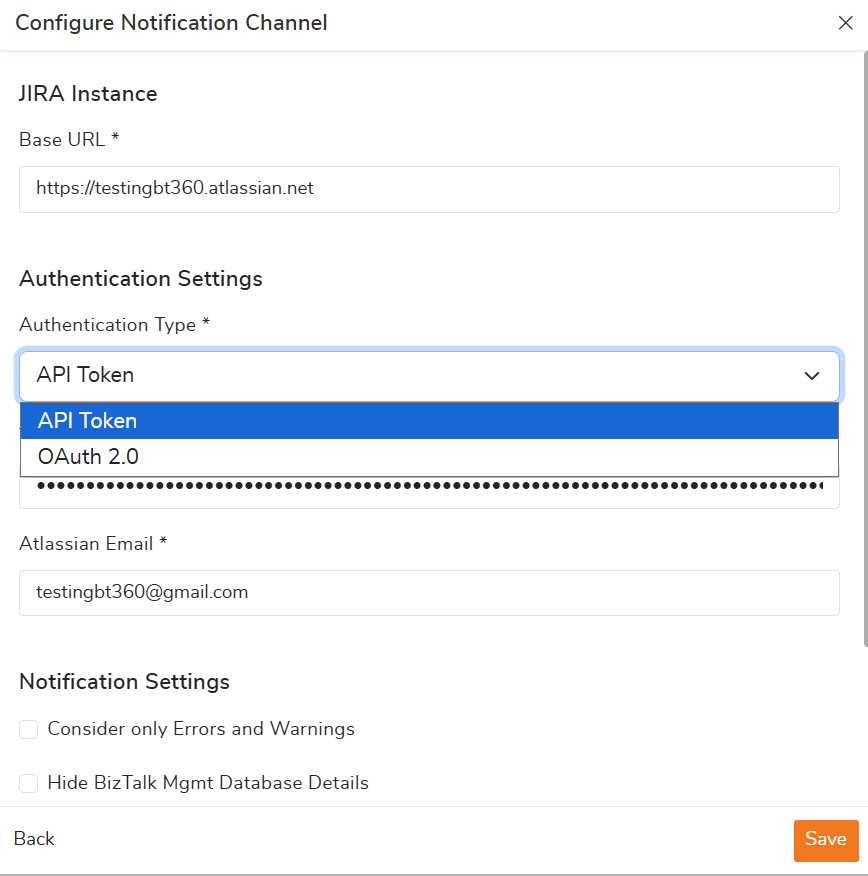
After generating the token, users need to select API Token as the authentication type in BizTalk360. Then, enter the Jira Base URL, provide the generated Jira API Token, and specify the Atlassian account email address to complete the configuration.
OAuth provides a more secure and controlled way of authentication. Ideal for enterprise environments that require higher security and strict access control. More secure and scalable, as credentials are not directly exposed.
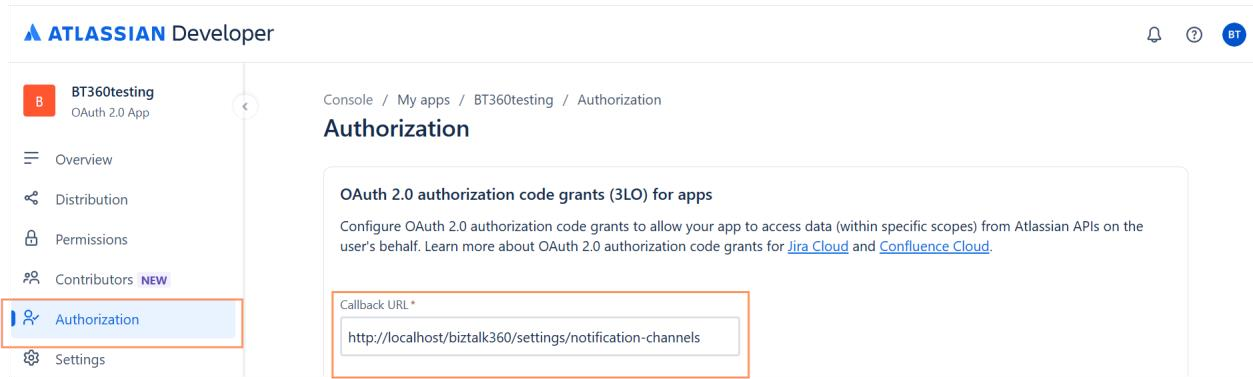
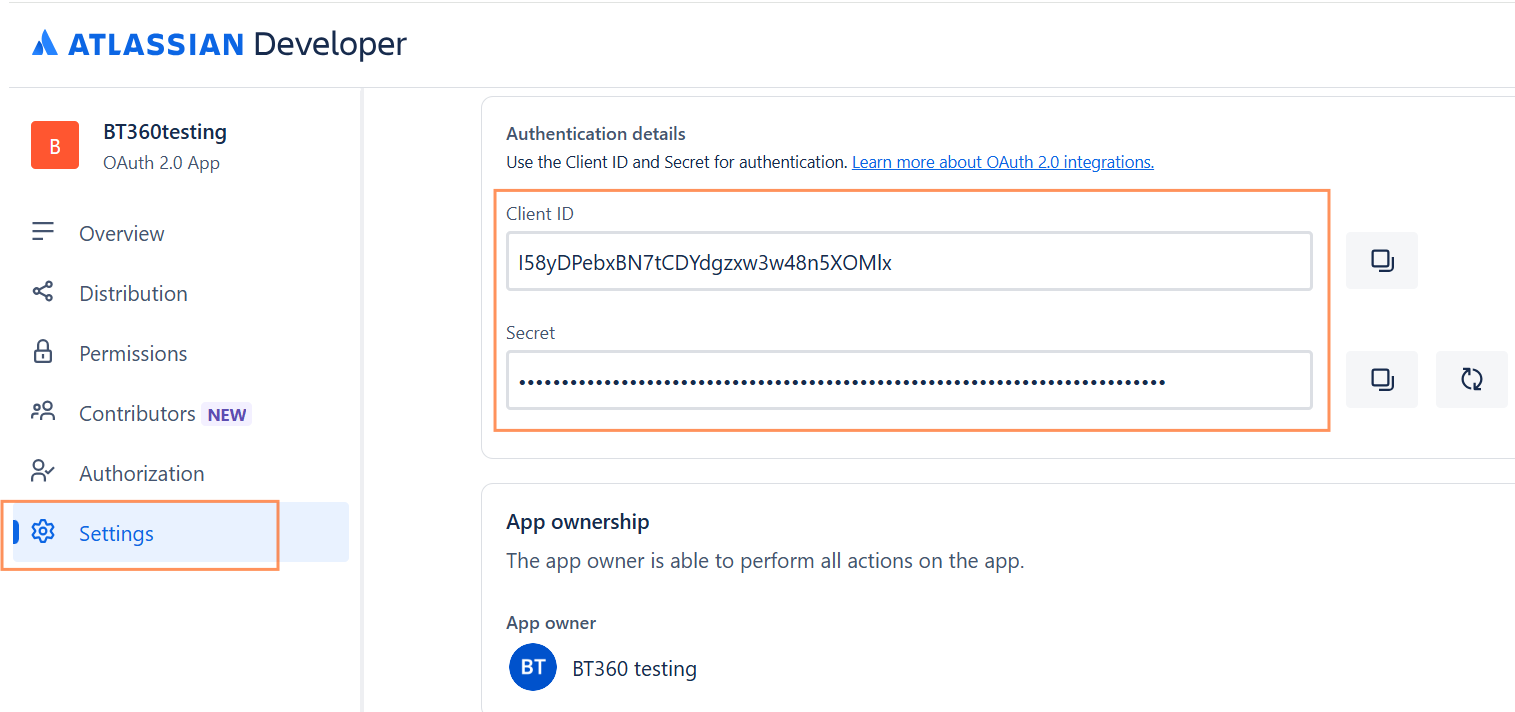
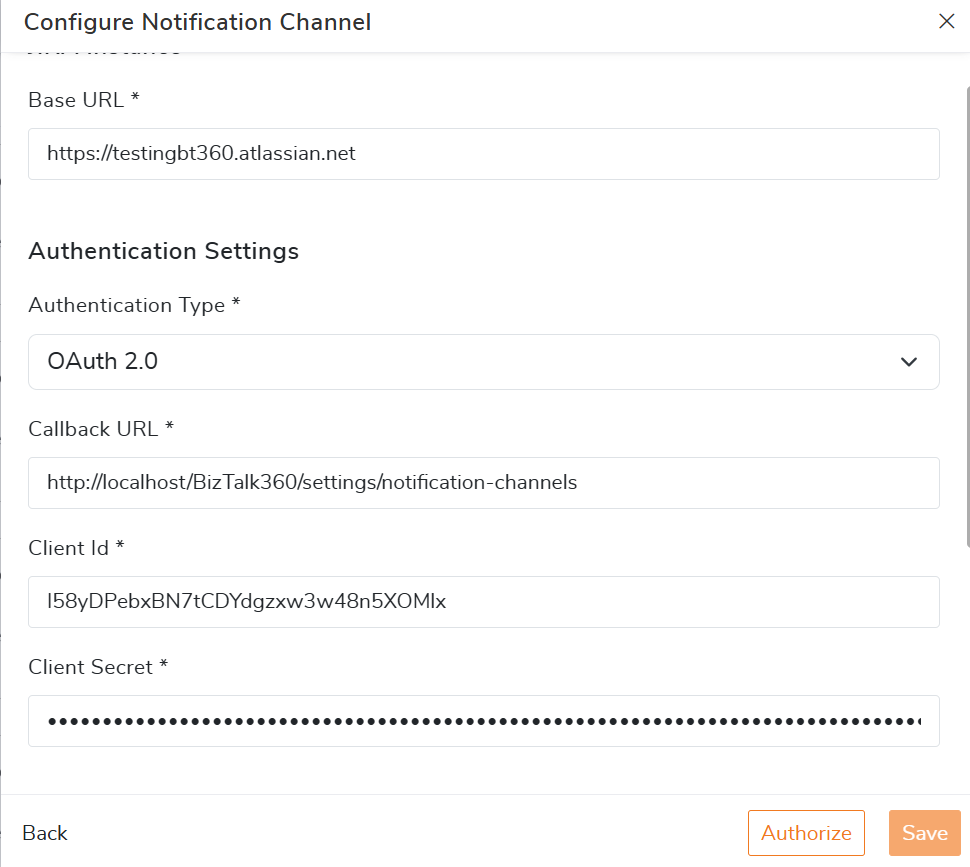
For OAuth 2.0 authentication, select OAuth 2.0 as the Authentication Type and provide the Jira Base URL, Callback URL, Client ID, and Client Secret obtained from the Atlassian developer console. Once the required details are entered, click Authorize to authenticate the Jira account and then save the configuration successfully.
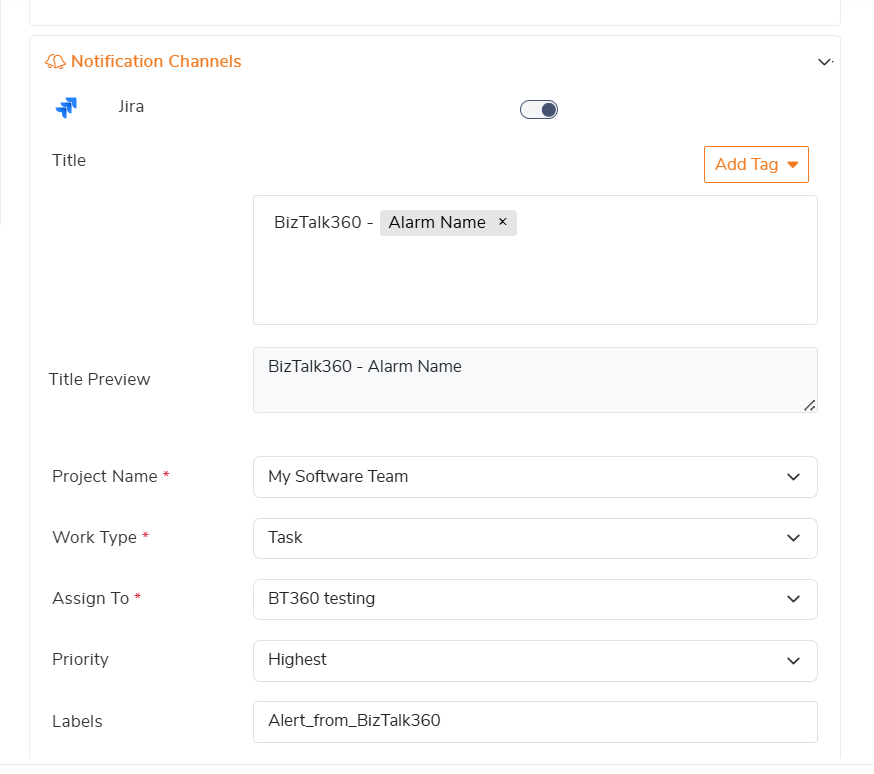
Once authentication is configured in the JIRA channel, the next step is to map the JIRA notification channel to an alarm in BizTalk360. This configuration ensures that whenever a monitoring rule violation occurs, BizTalk360 automatically creates a Jira ticket for the issue.
To send alerts to Jira, a few important properties need to be configured in the Alarm settings. These properties help define how the alert will appear in Jira and ensure that the ticket is assigned and categorized correctly for faster issue resolution.
By configuring these properties in the Alarm section, BizTalk360 can automatically generate well-structured Jira tickets whenever an issue is detected to improve visibility and collaboration. Whenever a monitored artifact, such as a SQL Server, application, or queue, violates a configured rule, an alarm is triggered, and BizTalk360 automatically creates a Jira ticket for the issue.
The JIRA notification channel in BizTalk360 bridges the gap between alerting and incident management by converting monitoring alerts into actionable tickets in Jira. This ensures that critical issues are not only detected promptly but also consistently tracked, assigned and resolved on time.
This integration helps organizations move towards a more proactive and structured approach to operations, improving both system reliability and team productivity.
To know more about the BizTalk360 features, try out the free trial or book a demo.